Publish RTMP stream using Wirecast
Wirecast is a live video streaming production tool by Telestream. It allows users to create live or on-demand broadcasts for the web. Wirecast supports various sources for capturing such as webcams, IP cameras, NDIs and capture cards.
Create a live stream in AMS
To publish with Wirecast, we must first create a live stream in Ant Media Server, as this live stream ID will be used to publish the stream in Wirecast.
In Ant Media Server, Go to the live application, and create a live stream with the name WireCast1 as in the screen:
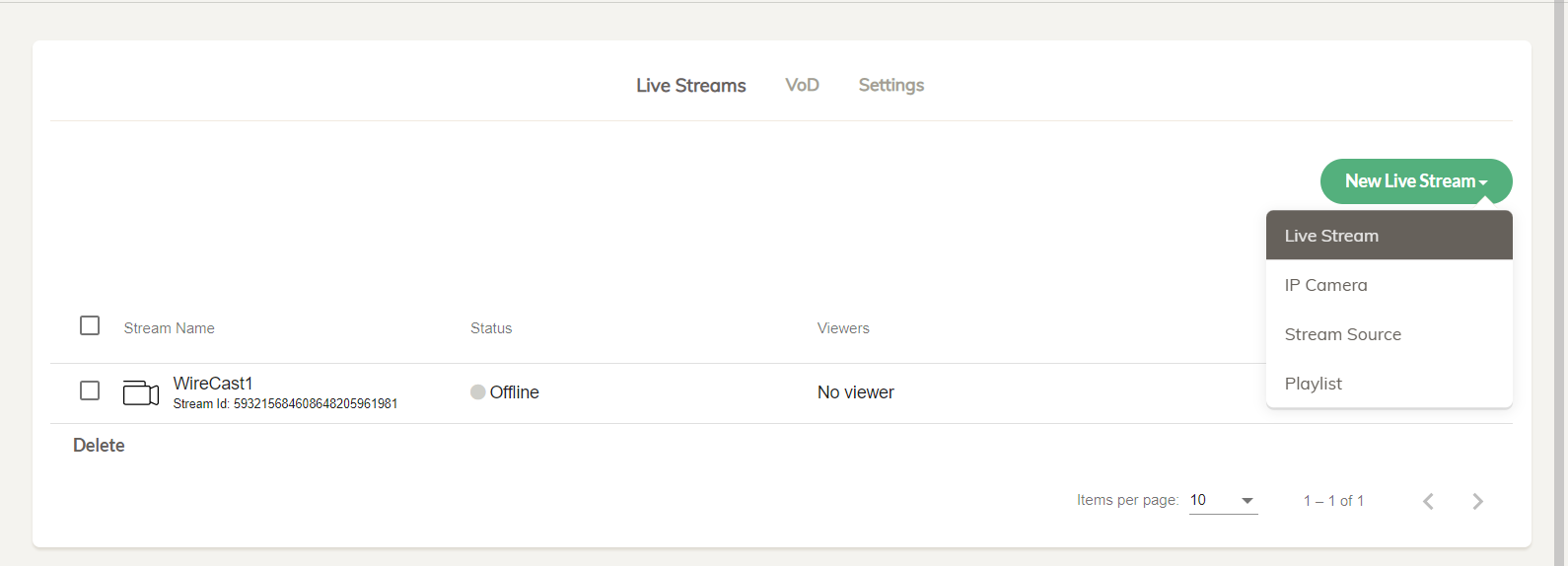
A live stream will be added to the live application dashboard. Take note of the WireCast1 stream Id as we will need it later. The server generates a random stream Id by default, but a custom stream Id can also be specified.
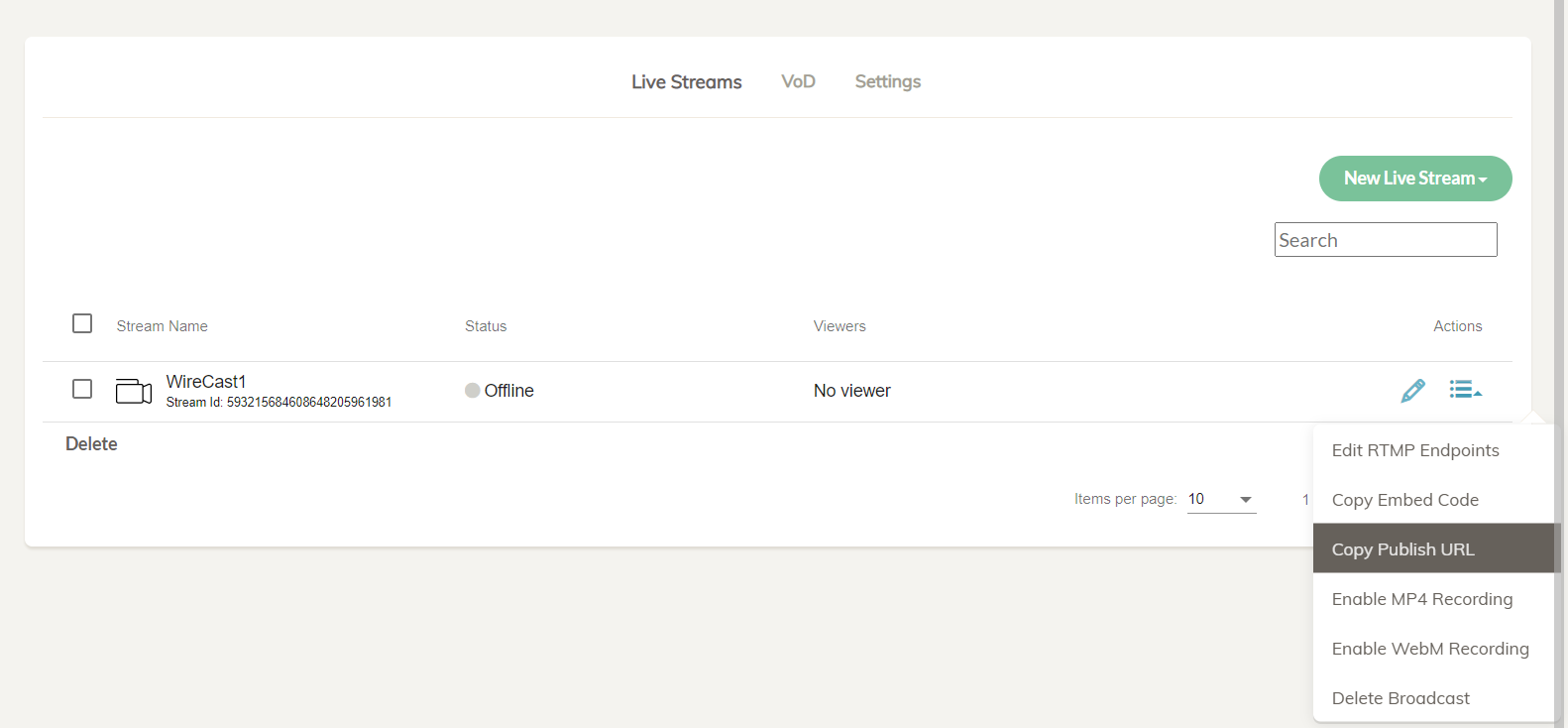
Once the stream has been created, we can copy the RTMP Url by selecting Copy Publish URL from the Actions menu, as shown in the image below.
Create a live stream in Wirecast
Now we are going to create a live stream in Wirecast and publish it to an output destination which is Ant Media Server in our case.
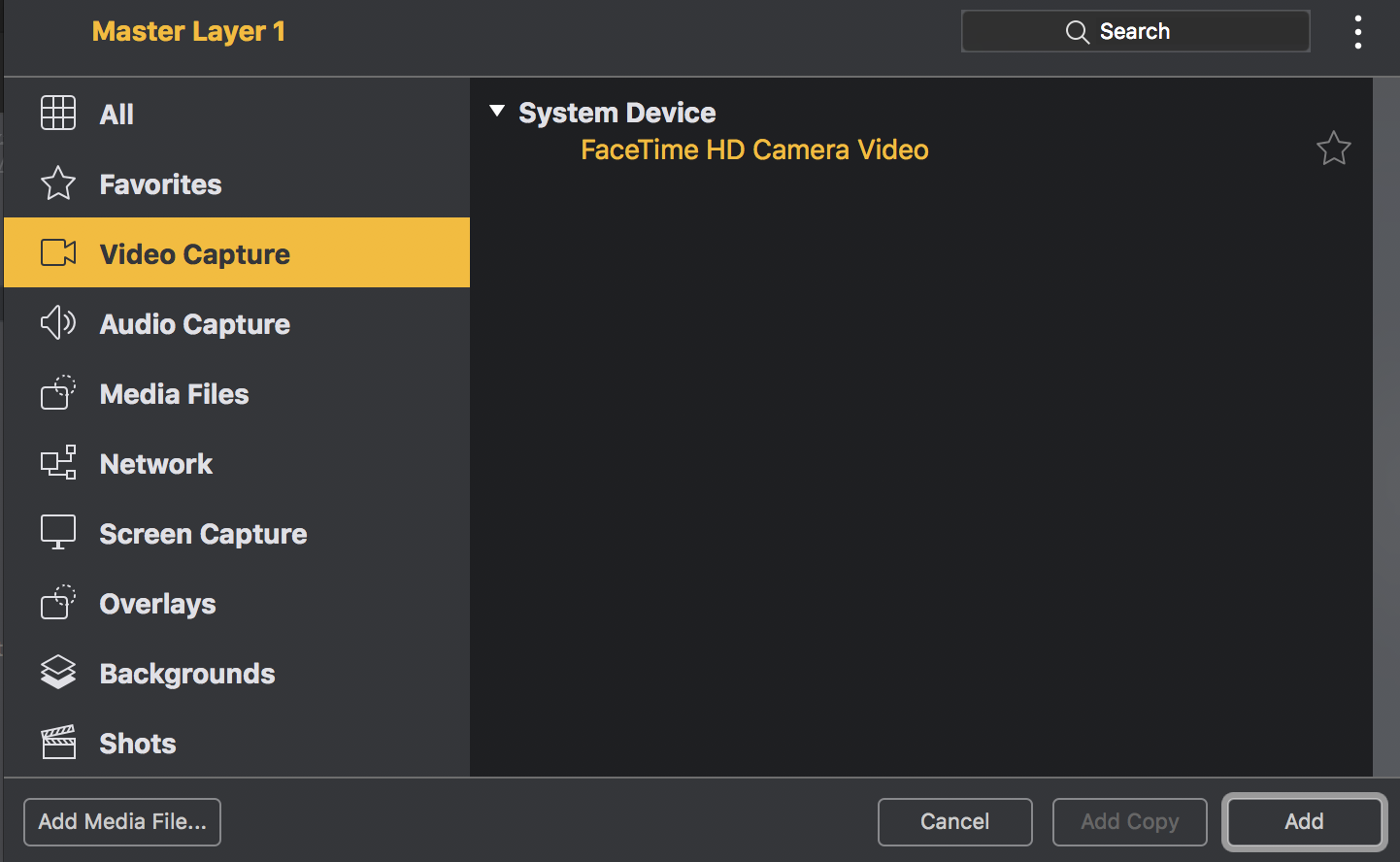
In Wirecast click the + button in Wirecast as in the screenshot:

Chose FaceTime as video capture source which is the webcam of our computer as in the screenshot:
We are going to publish stream to an RTMP URL in Ant Media Server. Click Output Settings in the upper menu and choose RTMP Server and click OK, as in the screenshot below.
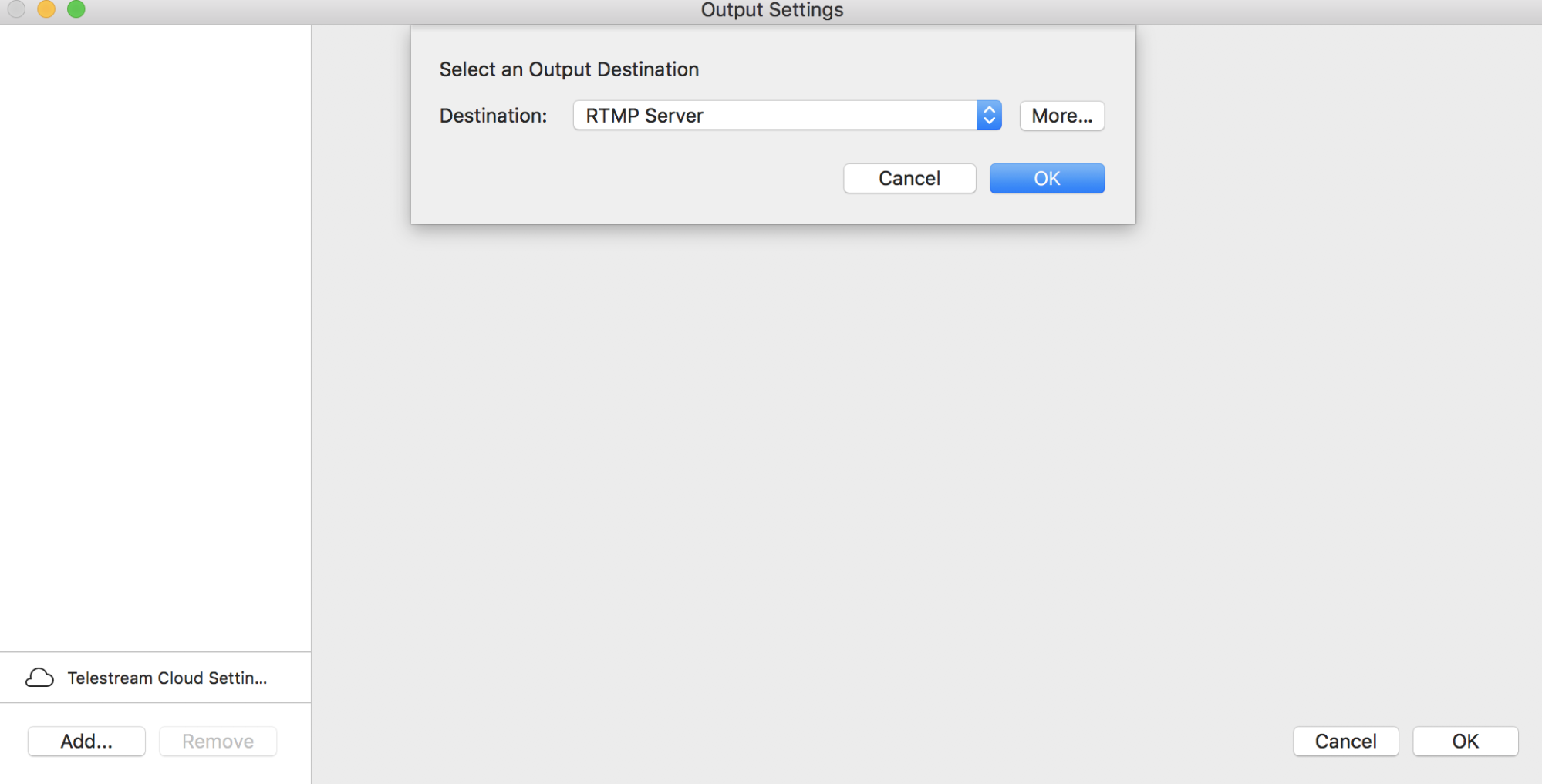
Put in the RTMP URL and Stream Id that we copied earlier from the Ant Media Server live application's dashboard.
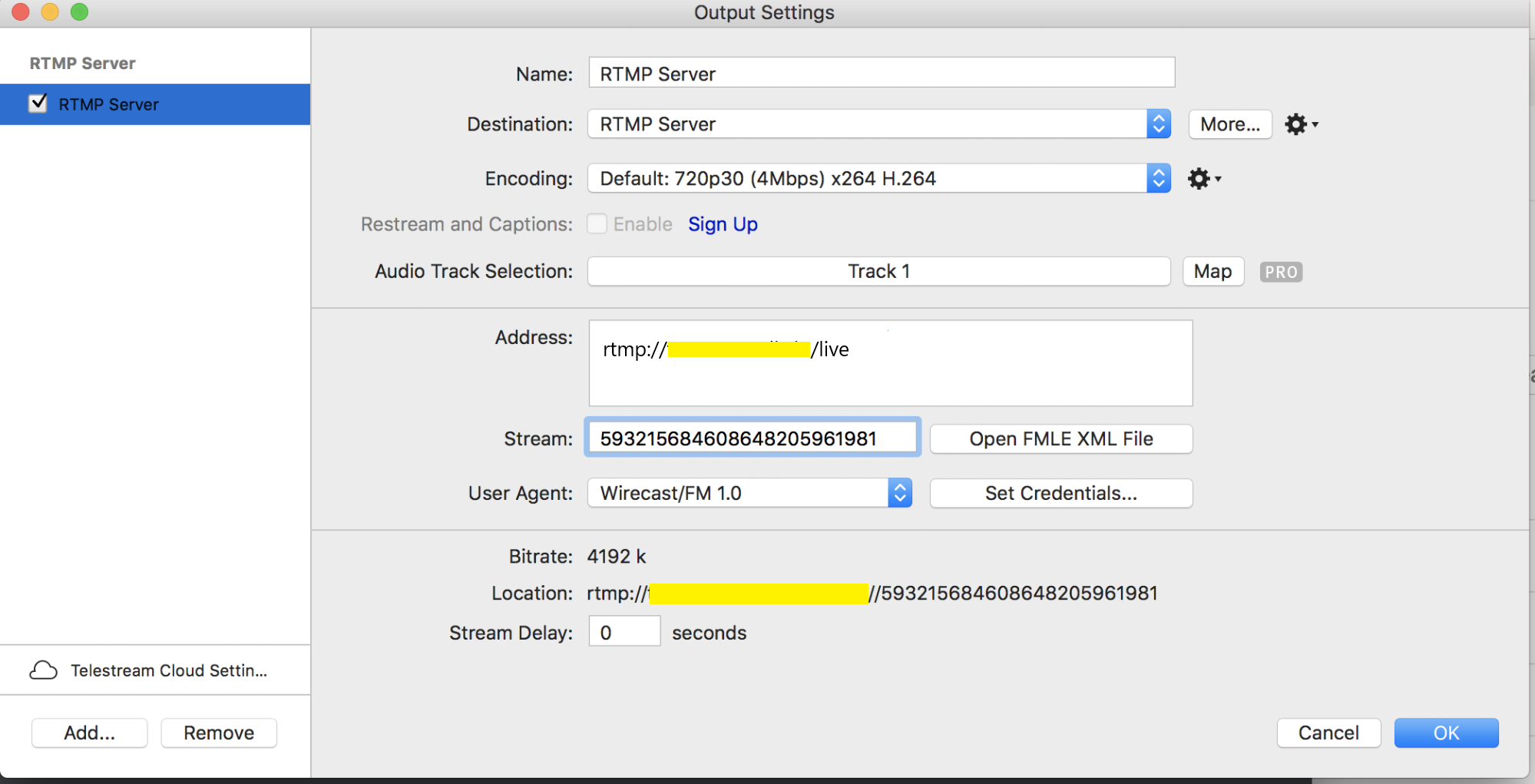
Tune for ultra-low latency streaming
By default, Wirecast is not optimized for ultra-low latency streaming. If you are pushing an RTMP stream from Wirecast and playing it via WebRTC:
- Go to Output > Output Settings > Edit Encoding Configuration.
- Set the Profile to Baseline.
- Adjust the bitrate according to your desired quality and available internet bandwidth.
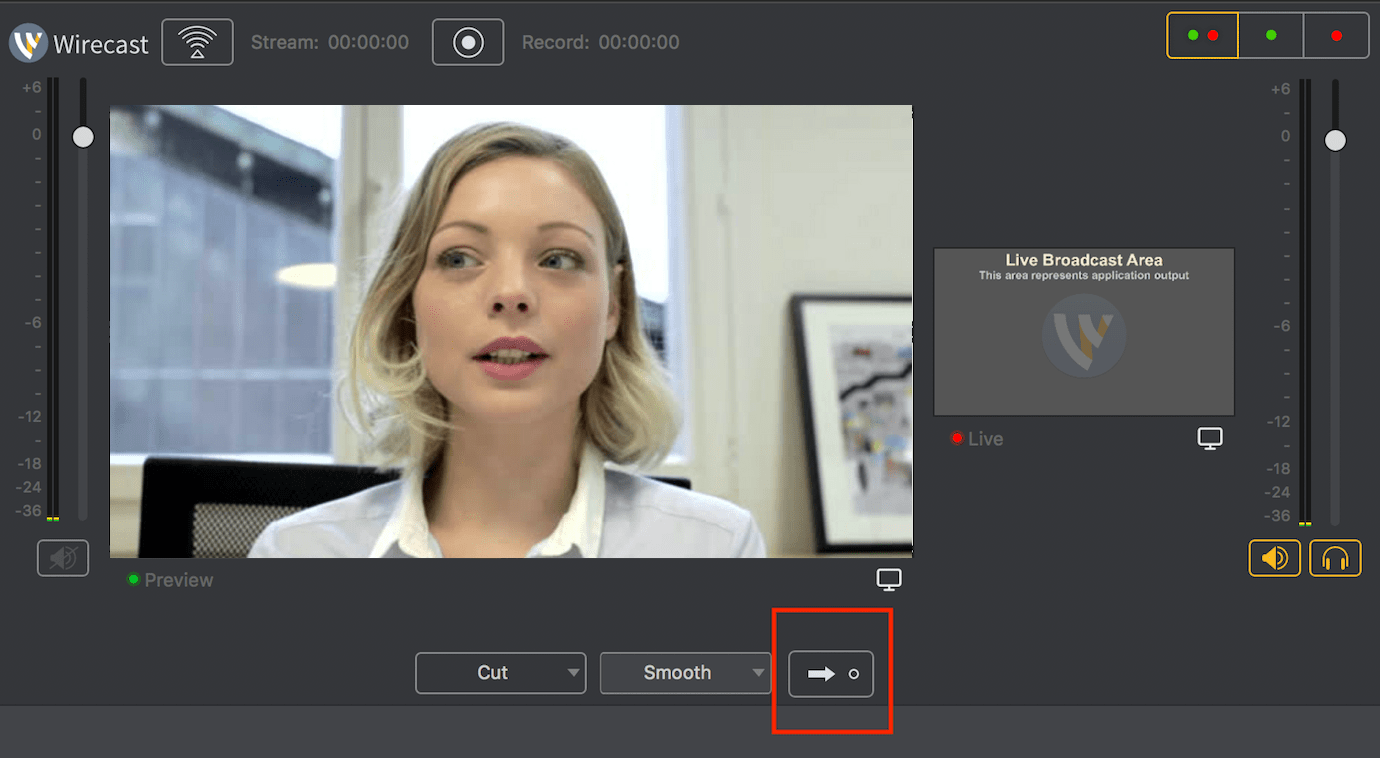
 Click the right arrow to select the source of the video stream as in the screenshot:
Start broadcasting the live stream by clicking the Start/Stop Broadcasting in the upper menu as in the screenshot below.

Now the live stream is published to Ant Media Server. You will see the status of live stream in Ant Media Server is changed to Broadcasting status.
You can now click the Play button and watch the live stream.
Ant Media X Wirecast 🎙️
You’ve created a live stream in AMS, configured Wirecast with the RTMP URL & Stream ID, tuned for ultra-low latency (Profile = Baseline, matched bitrate), and started broadcasting.
Tap on your back— your stream is live, optimized, and ready to engage your audience! 🔥