Coturn Quick Installation
What is a TURN Server?
A TURN server is a network entity in charge of relaying media in VoIP-related protocols. This includes SIP, H.323, WebRTC, and other protocols.
When you try reaching out directly from one browser to another with voice or video data (sometimes other arbitrary kinds of data), you end up going through different network devices. Some of these devices include Firewalls and NATs (Network Address Translators) which may decide due to internal policies not to pass your data.
When there are some network securities like a firewall, then the data packet does not transfer and we do not get proper streaming of another user.
So we use the TURN server for this solution.
Ant Media Server does not require a TURN server even if there is Symmetric NAT. However, it's required if UDP ports are blocked for any reason or Ant Media Server is used as a signaling server in P2P communication.
Install TURN server
Automatic Installation
By running the install_turn-server.sh script, you can quickly install and configure the TURN server automatically.
- Get the Installation Script
sudo wget https://raw.githubusercontent.com/ant-media/Scripts/master/install_turn-server.sh && sudo chmod +x install_turn-server.sh
- Run the Installation Script
sudo ./install_turn-server.sh
Manual Installation
If you want to install the TURN server manually, please follow the below steps.
- Install Coturn
sudo apt-get update && sudo apt-get install coturn
- Enable TURN Server
- Edit the below file.
vim /etc/default/coturn
- Add the following line:
TURNSERVER_ENABLED=1
- Configure TURN Server
- Edit the file
/etc/turnserver.confby adding the following 2 lines as mentioned below:
user=username:password
realm=your_public_ip_address
- Once you are done with making the changes as suggested above, restart the TURN server with the below command.
sudo systemctl restart coturn
If you are using an AWS EC2, GCP, or Azure instance, etc., where NAT is used, you must add the following lines in the turnserver.conf file.
relay-ip=your_EC2_private_ip
external-ip=your_EC2_public_ip/your_EC2_private_ip
Also, open the following ports on the security group or firewall.
- TCP 443 #TLS listening port
- TCP 3478-3479 #coturn listening port
- TCP 32355-65535 #relay ports range
- UDP 3478-3479 #coturn listening port
- UDP 32355-65535 #relay ports range
How to test Turn Server
You can test the TURN server if it is configured and working properly with the below methods.
- Command Line
turnutils_uclient -v -t -T -u username -w password -p 3478 turn_server_ip
- Web Browser
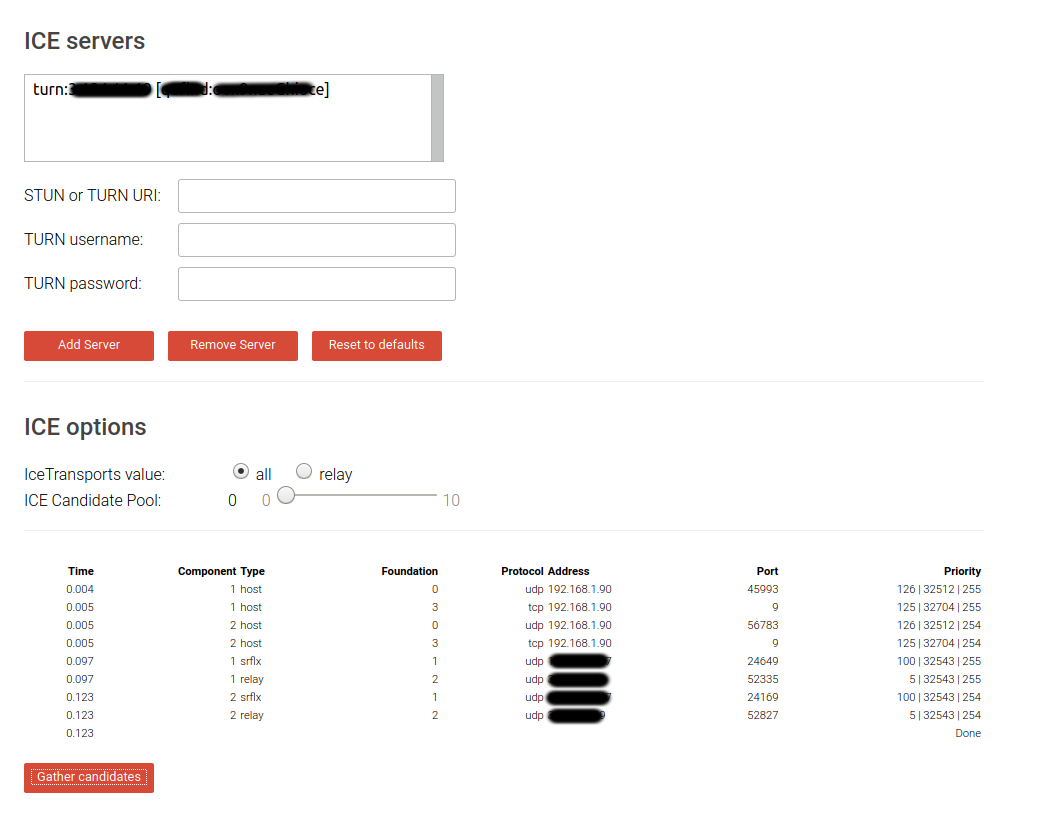
- Open the following link and fill in the required details. Thereafter, Add Server here : https://webrtc.github.io/samples/src/content/peerconnection/trickle-ice/

- Once done. Click
Gather Candidates. If the details you provided are validated, you will get the output as in the below image.
🔄 TURN-Up the Connectivity — Firewalls, NATs, You're No Match! ⚡️
With coTURN installed and configured, even the strictest firewalls and NATs can't stop your streams. Your communication gets relayed when needed, keeping everything smooth and seamless.
Your network just got smarter — reliable, resilient, and ready for any connection challenge! 🚀