Push Notification Management
Push notifications enable you to send announcements or video/audio call notifications to all users or specific groups. This page details how to send and configure these notifications.
Prerequirements
-
Firebase Cloud Messaging (FCM): Create a Firebase account and integrate the Firebase SDK into your client applications. Official documentation.
-
Apple Push Notification service (APNs):
Create an Apple Developer account and configure APNs for your iOS applications. Official Documentation.
Registering Services
After registering with FCM or APNs, you will obtain a private key.
-
Open the Ant Media Server Management Panel.
-
Select the application where you want to enable push notifications.
-
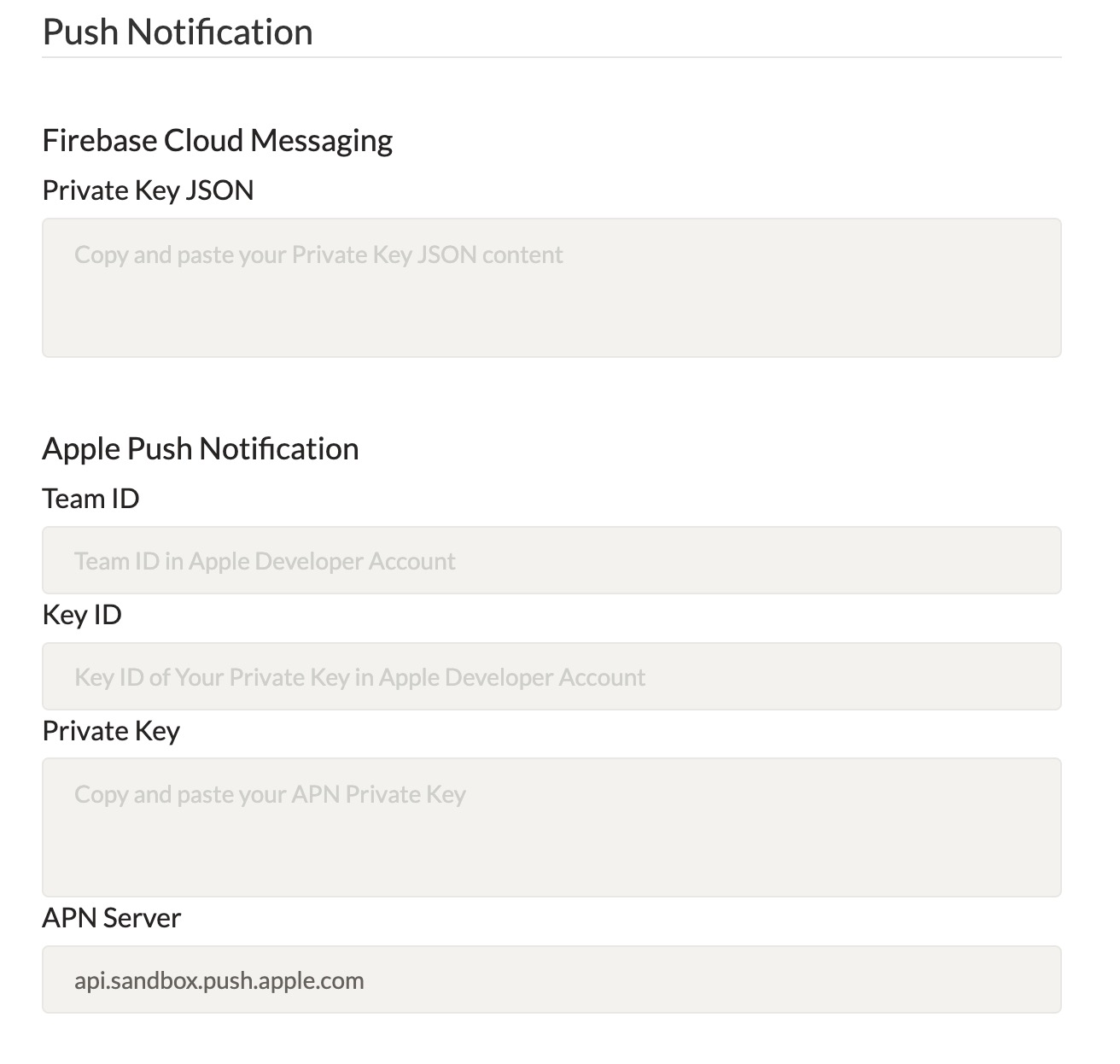
Go to the Application Settings → Push Notification section.
-
Upload your FCM JSON file or APNs .p8 key file.
Authorization
To secure the sendPushNotification WebSocket message:
-
Generate two subscriber authentication tokens:
-
One for the sender’s Subscriber ID.
-
One for the receiver’s Subscriber ID.
Use the getSubscriberAuthenticationToken Rest API endpoint.
curl -X 'GET' \
'https://your-antmedia-server-address:port/live/rest/v2/push-notification/subscriber-auth-token?subscriberId=<your-subscriber-id>' -
-
We’ll call the sender’s token authToken.
-
The sender’s ID will be subscriberId.
-
The receiver’s ID will be sendNotificationToSubscriber.
FCM/APN Device/Registration Token
Each client device must have a registration token.
For Firebase, follow the Firebase Cloud Message documentation
For APNs, follow the Apple Push Notification
We’ll refer to this as pushNotificationToken throughout the documentation.
Getting FCM Registration Token Example
-
Connect your server and go to the /usr/local/antmedia/webapps path.
-
Create fcm.html file and paste the code below
<!DOCTYPE html>
<html>

<head>
  <title>WebRTC Samples > Publish</title>
  <meta name="viewport" content="width=device-width, initial-scale=1">
  <meta charset="UTF-8">
  <link rel="stylesheet" href="css/external/bootstrap4/bootstrap.min.css">
  <link rel="stylesheet" href="css/samples.css" />
</head>

<body>
  <div class="container">
  	<div class="header clearfix">
  		<div class="row">
  			<h3 class="col text-muted" id="title"><a href="samples.html">WebRTC Samples</a> > WebRTC Publish </h3>
  		</div>
  	</div>

      <button id="requestPermissionButton">Request Permission</button>


  </div>
  <script type="module">
      // Import the functions you need from the SDKs you need
      import { initializeApp } from "https://www.gstatic.com/firebasejs/10.7.1/firebase-app.js";
      import { getMessaging, getToken, onMessage } from "https://www.gstatic.com/firebasejs/10.7.1/firebase-messaging.js";

      // TODO: Add SDKs for Firebase products that you want to use
      // https://firebase.google.com/docs/web/setup#available-libraries

      // Your web app's Firebase configuration
      const firebaseConfig = {
        apiKey: "AIzaSyBlWNhAbl1tIDCcWmDyk3yQ0rq0q-h_jrE",
        authDomain: "push-notification-d0a87.firebaseapp.com",
        projectId: "push-notification-d0a87",
        storageBucket: "push-notification-d0a87.appspot.com",
        messagingSenderId: "790648424032",
        appId: "1:790648424032:web:e80e41b82af7ca24652505"
      };

      // Initialize Firebase
      const app = initializeApp(firebaseConfig);

      const messaging = getMessaging(app);


      function requestPermission() {
          console.log('Requesting permission...');
          Notification.requestPermission().then((permission) => {
              if (permission === 'granted') {
                  console.log('Notification permission granted.');
                  // TODO(developer): Retrieve a registration token for use with FCM.
                  // In many cases once an app has been granted notification permission,
                  // it should update its UI reflecting this.
                  getToken(messaging, {vapidKey: "BG-LtPlSHYb6RIoKnqPL2ZDbbCIeqQZrNMJSA7lRZ5f7Za5_Lv16OT-VziO5oH-QNCvo6jmKzODLtKqEBqO-LYE"})
                  .then((currentToken) => {
                              if (currentToken) {
                                  // Send the token to your server and update the UI if necessary
                                  // ...
                                  console.log("current token for client: "+currentToken);

                                  onMessage(messaging, (payload) => {
                                      console.log('Message received. ', payload);
                                  // ...
                                  });

                              } else {
                                  // Show permission request UI
                                  console.log('No registration token available. Request permission to generate one.');
                                  // ...
                              }
                              }).catch((err) => {
                              console.log('An error occurred while retrieving token. ', err);
                              // ...
                              });


              } else {
                  console.log('Unable to get permission to notify. Permission: ' +permission);
              }
          });
      }

      document.getElementById('requestPermissionButton').addEventListener('click', requestPermission);


      requestPermission();


    </script>

</body>
</html>
-
Create firebase-messaging-sw.js file and paste the code below
importScripts('https://www.gstatic.com/firebasejs/10.8.0/firebase-app-compat.js');
importScripts('https://www.gstatic.com/firebasejs/10.8.0/firebase-messaging-compat.js');


// Retrieve an instance of Firebase Messaging so that it can handle background
// messages.

const firebaseConfig = {
  apiKey: "AIzaSyBlWNhAbl1tIDCcWmDyk3yQ0rq0q-h_jrE",
  authDomain: "push-notification-d0a87.firebaseapp.com",
  projectId: "push-notification-d0a87",
  storageBucket: "push-notification-d0a87.appspot.com",
  messagingSenderId: "790648424032",
  appId: "1:790648424032:web:2dfe62f14401f80b652505"
};

// Initialize Firebase
const app = firebase.initializeApp(firebaseConfig);
const messaging = firebase.messaging();

messaging.onBackgroundMessage((payload) => {
  console.log('[firebase-messaging-sw.js] Received background message ', payload);
  // Customize notification here
  const notificationTitle = 'Background Message Title';
  const notificationOptions = {
    body: 'Background Message body.',
    icon: '/firebase-logo.png'
  };

  self.registration.showNotification(notificationTitle,
    notificationOptions);
});
-
Go to https://domain_name:5443/fcm.html url using any browser.
-
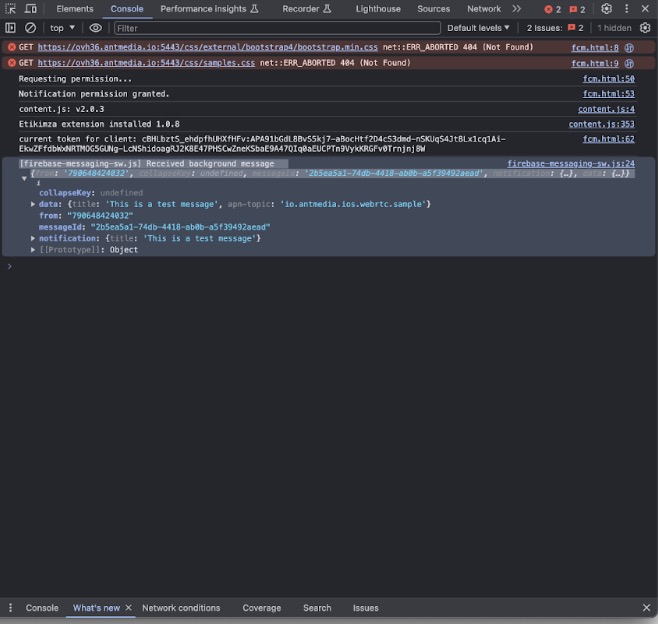
Open browser's developer console and you will see your FCM Registration Token

Register Push Notification Token
Call the following function in your client code to register a token with Ant Media Server:
webRTCAdaptor.registerPushNotificationToken(subscriberId, authToken, pushNotificationToken, pushNotificationService);
Send a push notification
Finally, you can send push notifications securely via Ant Media Server:
webRTCAdaptor.sendPushNotification(subscriberId, authToken, {"title":"This is a test message", "apn-topic":"io.antmedia.ios.webrtc.sample"}, [sendNotificationToSubscriber]);
Congratulations!
You’ve completed the Push Notification Management setup in Ant Media Server:
-
Configured FCM/APNs services
-
Registered device tokens
-
Secured communication with subscriber tokens
-
Sent test push notifications
Your applications are now ready to send real-time alerts, calls, and announcements directly to web and mobile clients