AMS Application Configuration
Ant Media Server can be configured either by editing a configuration file or through the application settings tab in the Management Panel.
The configuration is set on the application level and is stored in a file located at /usr/local/antmedia/webapps/{AppName}/WEB-INF/red5-web.properties.
The Management Panel allows changing all the application settings; however, the file is much more extensive. See the Application Settings Javadoc to find a complete list of all available settings.
Management Panel Application settings
Log in to the Ant Media Server dashboard and click on the application you want to configure from the left-hand menu. Then click on the Settings tab.
There are two options here: Basic and Advanced.
Basic settings include the most commonly used application settings, while the other application settings are under the Advanced option.
Starting from Ant Media Server version 2.6.2, all the application settings for both standalone mode and cluster mode of Ant Media Server can be changed from the Management Panel itself.
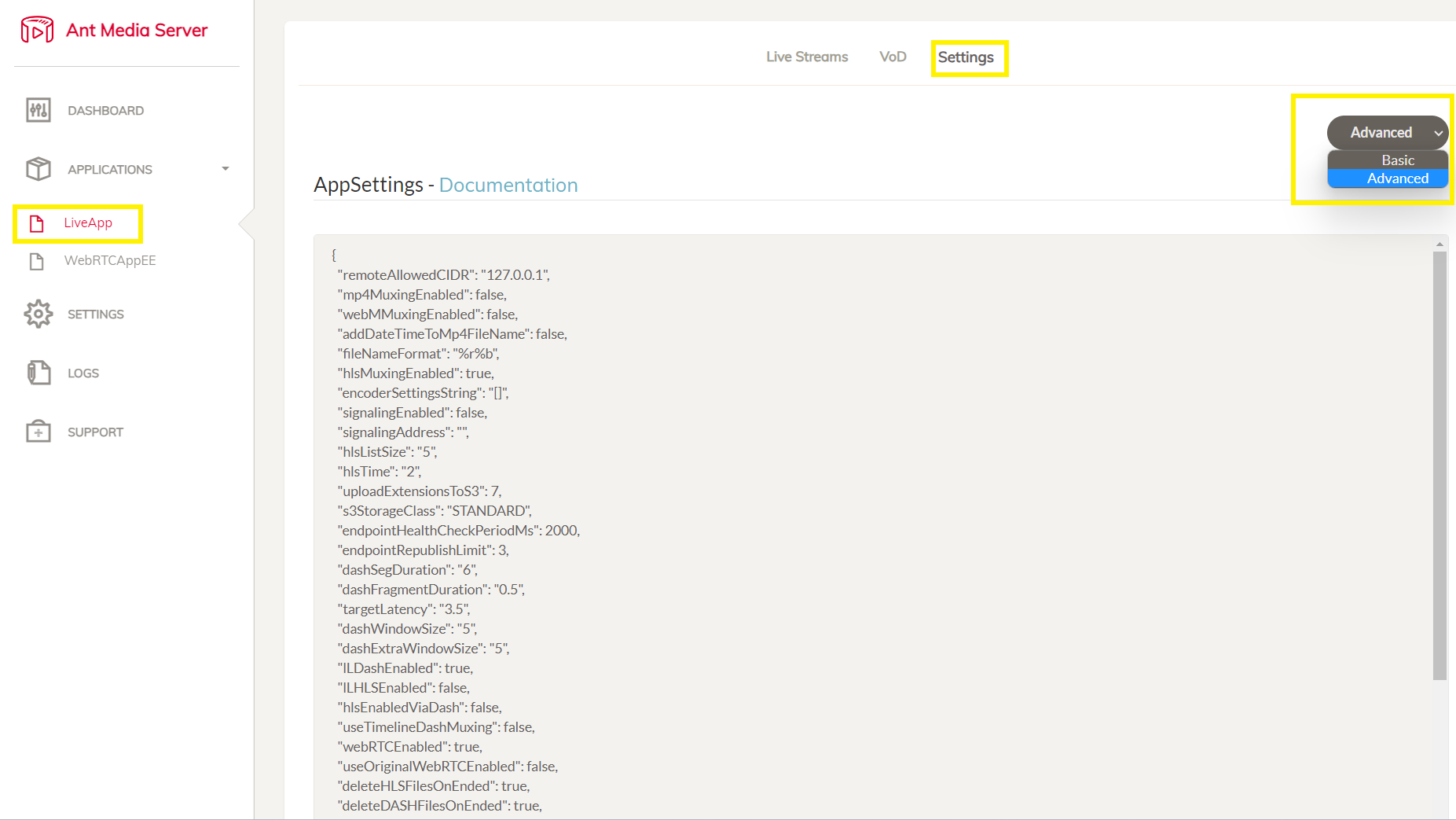
If you change the application settings via the Web Management Panel, there is no need to change from the backend via the properties file.
Adding additional settings
If any specific setting has not been added to the red5-web.properties file or under Advanced settings, simply append the setting to the configuration file or add it from the Management Panel.
Follow the steps below to find and add an additional setting:
1. Find the setting
Open the Javadoc page and find the setting that needs to be added to the configuration file.
2. Confirm the setting type and value
The description of each setting confirms the type and default value.
For example, the setting aacEncodingEnabled is of type boolean with a default value of true:
@Value("${settings.aacEncodingEnabled:true}")
private boolean aacEncodingEnabled
3. Update the configuration file
To add an additional setting to the application, open the application settings and navigate to Advanced Settings on the Management Panel.
Following the example of the aacEncodingEnabled setting, the below can be appended to the file:
aacEncodingEnabled=false
Change App settings programmatically
To change the app settings via API, you need to call the Management Rest APIs to change the application settings. You can use this method in either standalone mode or cluster mode of Ant Media Server.
-
First you need to authenticate to call management Rest APIs. You can choose any of the methods defined here.
If you authenticate using a username and password, then you need to store the cookie to use it in further API calls.
-
Call the Get Settings Rest API to get the settings of application. For example,
liveapplication.Here is the curl sample:
curl -X GET -H "Content-Type: application/json" "https://example.com:5443/rest/v2/live" --cookie cookies.txtIn response you will get all the application properties that you need to copy and use in the next API call.
-
After getting the application settings from the response of the previous Rest API call, use Change settings Rest API to change the settings.
For example, to disable the HLS option, you need to change the below property and all other properties will be same.
"hlsMuxingEnabled": false,Here is the curl sample:
curl --location 'https://example.com:5443/rest/v2/applications/settings/live' \
--header 'Content-Type: application/json' \
--cookie cookies.txt \
--data '{
 "hlsMuxingEnabled": true,
}'
After that, you can verify the changes through the Management Panel.
AMS configuration for you
You’ve logged into the Management Panel, explored both Basic and Advanced settings, and even learned how to tweak the red5-web.properties file directly for fine-grained control.
Tada, you now have full mastery over your Ant Media Server application settings, whether through the dashboard or configuration files, ensuring it runs exactly the way you need.