Thumbnails
Thumbnails are small, lightweight versions of images or videos, used as previews to represent larger files. They help users quickly browse content while saving bandwidth and loading time. Commonly used in galleries, video platforms, and file explorers.
Enable Thumbnails
Ant Media Server can generate thumbnails (previews) of the incoming streams on the fly. This guide will help you learn configuration parameters for generating and using thumbnails.
- To activate thumbnail generation, add at least one adaptive bitrate. You can do that in the dashboard using
Application > live > Settings > Add New Bitrate

- Enable the thumbnail feature from the web panel settings by checking the 'Generate Preview' checkbox:
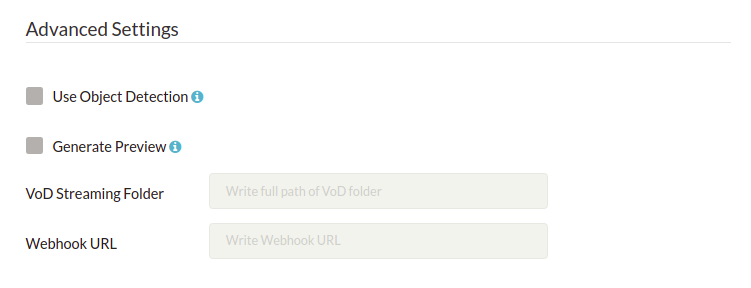
-
You can also enable it via Advanced application settings as well.
-
Go to the
Application > Your App > Settings > click on basic > Switch to Advancedand search forgeneratePreviewand set it to true."generatePreview": true, -
After making the changes, save the settings.
Configuration Parameters
Similarly, you can add/change other preview-related properties in the Advance settings of the application we changed above.
-
previewFormat: By default, the thumbnail image is saved in png format. If you prefer a different image format, you can update the corresponding parameter in the advanced settings. The supported formats include jpg, png, and webp.To achieve the desired format, ensure you select the appropriate option based on your requirements, such as file size, quality, and compatibility with your application. Adjusting this setting allows for greater flexibility in how the preview images are generated and used.
"previewFormat": "png", -
previewQuality: Specify the preview quality for JPG and WEBP formats. Note that the preview quality isn't available for the PNG format.-
For
JPG, the quality range is from 2 to 31, where 2 provides the best quality with the largest file size, and 31 delivers the lowest quality with the smallest file size. The recommended value for JPG is 5."previewQuality": 5, -
For
WEBP, the quality range is from 0 to 100, where 0 provides the lowest quality with the smallest file size, and 100 delivers the best quality with the largest file size. The recommended value for WEBP is 75."previewQuality": 75,
-
-
previewHeight: The thumbnail image is saved as 480p by default. If you want to increase the resolution, change the following parameter in the advance settings."previewHeight": 480, -
createPreviewPeriod: The default value for the thumbnail generation is 5000 ms. As an example, if you change it as follows, it will create a thumbnail every second."createPreviewPeriod": 1000, -
previewOverwrite: The default value is false. If it is false, when a new stream is received with the same stream ID, the_N (increasing number)suffix is added to the thumbnail file name. If it is true, a new preview file will overwrite the old one."previewOverwrite": false, -
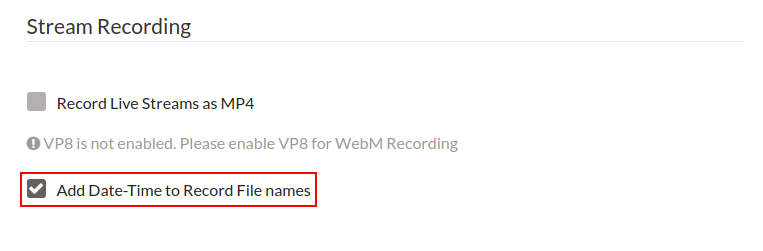
addDateTimeToMp4FileName: The default value is false. If true, it adds a date-time value to file names. If false, it does not add date-time values to file names."addDateTimeToMp4FileName": false,
As an alternative, you can also enable this feature on the web panel by enabling the check box under Application >` Your App >` Settings >` Add Date-Time to Record File Names and saving the settings.
Preview Thumbnail
Access the generated thumbnails via the following URL template:
http://<SERVER_NAME>:5080/live/previews/<STREAM_ID>.png

http://<SERVER_NAME>:5080/live/previews/<STREAM_ID>.jpg

http://<SERVER_NAME>:5080/live/previews/<STREAM_ID>.webp
With v2.4.3 and later, the _finished suffix is added to the PNG file after streaming has finished. So that it will be in the following template
http://<SERVER_NAME>:5080/live/previews/<STREAM_ID>_finished.png

http://<SERVER_NAME>:5080/live/previews/<STREAM_ID>_finished.jpg

http://<SERVER_NAME>:5080/live/previews/<STREAM_ID>_finished.webp
The absolute path of the preview image is as follows:
/usr/local/antmedia/webapps/live/previews/
In addition to this, you can also upload thumbnail images to the S3 buckets. Please check out the instructions for S3 Integration.
📸 Thumbnails delivered 🎯
With thumbnail previews enabled, your viewers get a sneak peek before they dive in. Whether it's a snapshot of the action or a glimpse of the content, these previews enhance the browsing experience.
Your streams are now not just watched; they're previewed, engaged with, and remembered! 🚀