How to Measure End-to-End Latency
Sometimes you may need to calculate the time it takes for a stream to be transmitted from one point to another. In this guide, we’ll show you step by step how to calculate the duration between the publisher and the player.
Methodology
- Draw the timestamp (publish time) onto the stream canvas while broadcasting.
- Draw the timestamp (play time) onto the stream canvas while playing the stream.
- Extract both timestamps using OCR (Optical Character Recognition).
- Calculate the end-to-end (E2E) latency by subtracting the publish time from the play time.
Guide to Measuring End-to-End Latency
We'll use Amazon Rekognition or Google's Vision API to calculate the E2E latency.
You’ll need two example pages from the Web SDK:
- publish_with_timestamp.html: Draws the publish time on the canvas while broadcasting. (Available in Ant Media Server v2.3.0+.)
- player_with_timestamp.html: Draws the play time on the canvas, calls the OCR API, and calculates latency. (Also available in v2.3.0+.)
1. Sync Devices with a Time Server
Both the publisher and the player devices must be in sync to ensure accurate time difference calculation. For testing, we use an NTP time provider.
If time servers can’t be used (common on mobile devices), you can manually synchronize the devices using player_with_timestamp.html.
Manual Sync
Find the offset in publisher and player devices. We've used AtomicClock to find the offset.
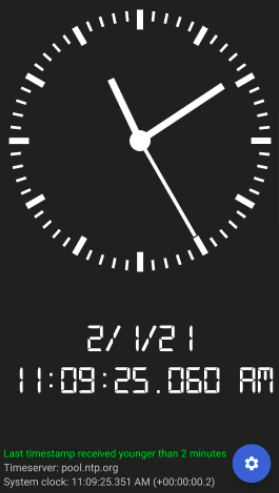
Here the local device is beyond NTP by 290 milliseconds, which is time difference between 11:09:25.060 and 11:09:25.351(system clock - bottom of the image). Assume that the device is the publisher. In this case, publisher offset is -291. If the device was behind NTP by 290 milliseconds, the offset would be 290 without a negative sign.
After you check the time difference manually from a time server, you can enter the offset of the publisher and player devices on the player page. If the device's time is beyond the NTP time, the offset value will be negative. Otherwise, it will be positive. On this page you will see that there is a publisher and player offset.
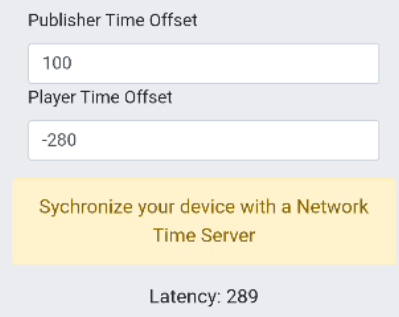
2. Setup OCR: Choose AWS Rekognition or Google's Vision API
AWS Rekognition: To enable the AWS SDK for using Rekognition, you need to get your AWS Access Key ID and AWS secret key. Check this link for AWS authentication.
Enter your credentials and region:
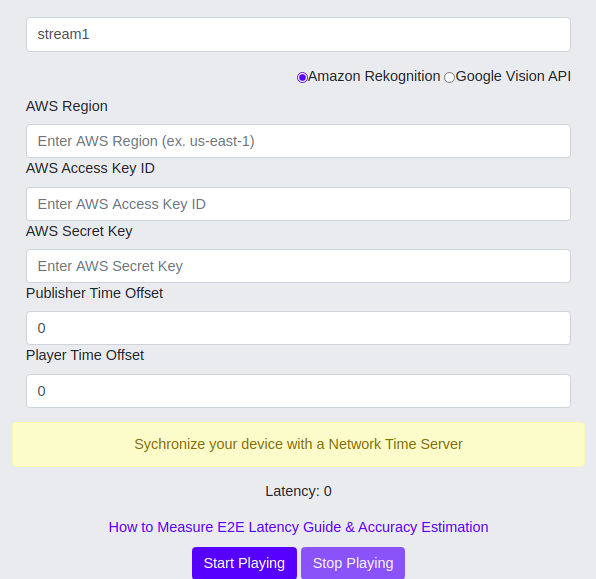
Google Vision API: To get the token from vision API, you should download and enable gcloud from the terminal. Read Google's documentation on how to download and enable gcloud.
After the authentication is done, enter the following command on the terminal:
gcloud auth application-default print-access-token
The returned token must be entered into player_with_timestamp.html under the Vision Token field.
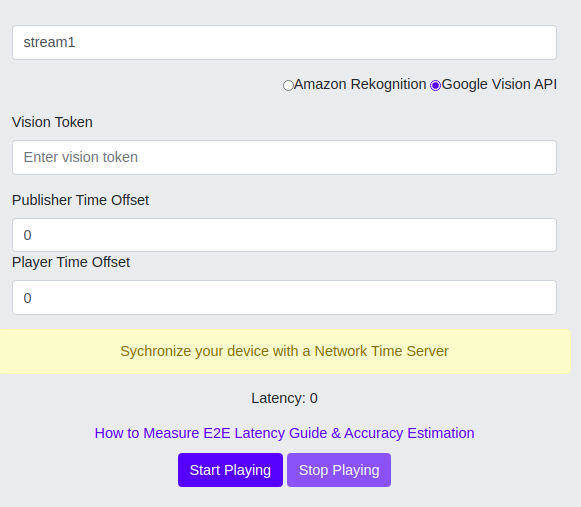
If gcloud can't be run from the terminal, you can add it to the path by downloading the SDK manually to your home directory.
Run the following commands on Ubuntu:
$/google-cloud-sdk/bin$ source '/home/karinca/google-cloud-sdk/path.bash.inc'
$/google-cloud-sdk/bin$ source '/home/karinca/google-cloud-sdk/completion.bash.inc'
$~/google-cloud-sdk/bin$ gcloud
3. Measure latency
After you give the required parameters, latency will be measured every second programmatically.

Accuracy of the end to end measurement
There are a few things that affect the accuracy when measuring the time.
- Canvas rendering: Drawing the time onto the canvas introduces ~10 ms delay (can usually be ignored).
- Canvas FPS: Adds ~30 ms delay to the calculation.
- Time Offset: Even with NTP sync, devices can differ by tens of milliseconds, resulting in up to ~20 ms of error.
End-to-end latency for you
You’ve synced your devices, embedded timestamps into your streams, and hooked up OCR with AWS Rekognition or Google Vision API to capture and compare publish/play times.
Tada, you now have a clear, reliable way to measure and understand end-to-end latency in Ant Media Server, giving you confidence in your streaming performance.