Enforce Stream Quality
Ant Media Server (AMS) has the ability to force stream quality. In this guide, you'll learn what it is, how it works, and how to benefit from the stream quality feature.
Viewers can enforce a resolution they would like to get. Keep in mind: if you request a quality with bitrate higher than the viewer’s bandwidth, you might see packet drops or pixelation.
How does the adaptive bitrate work?
Ant Media Server measures the viewers' internet speed and sends the best quality according to the internet speed of the viewer.
Example:
- Assume that there are two bitrates on the server.
- The first one is 360p and 800kbps.
- The second one is 480p and 1000kbps.
- Assume that the viewer's internet speed is as follows:
- Above 1000kbps: In this case, a resolution of 480p is sent.
- Less than 800kbps: In this case, a resolution of 360p is sent.
The adaptive bitrate feature ensures viewers receive only which qualities the server is publishing.
You can learn more about the adaptive bitrate in the previous document.
Enforce Quality in WebRTC
Once the stream starts playing, the viewer receives the play_started notification.
In WebRTCAdaptor, call getStreamInfo with webRTCAdaptor.getStreamInfo(streamId).
else if (info == "play_started")
{
    console.log("play started");
    webRTCAdaptor.getStreamInfo(streamId);
}
else if (info == "play_finished")
{
Retrieve Stream Information
Calling getStreamInfo triggers a response from the server containing stream details like adaptive resolutions, audio bitrate, and video bitrate.
else if (info == "streamInformation") {

				var streamResolutions = new Array();

				obj["streamInfo"].forEach(function(entry) {
					// This supports both VP8 and H264; resolution entries might appear duplicate.
					if(!streamResolutions.includes(entry["streamHeight"])){
						streamResolutions.push(entry["streamHeight"]);
					}
				});
After getting stream info, you can force a specific resolution using:
webRTCAdaptor.forceStreamQuality("{your_stream_Id}", {the_resolution_to_be_forced});
For more details, check out this code snippet.
Enforce Quality on Client Side
There is a working sample player.html below. When you choose a resolution, it will force the quality. You can select the resolution, as you can see from the screenshot below.
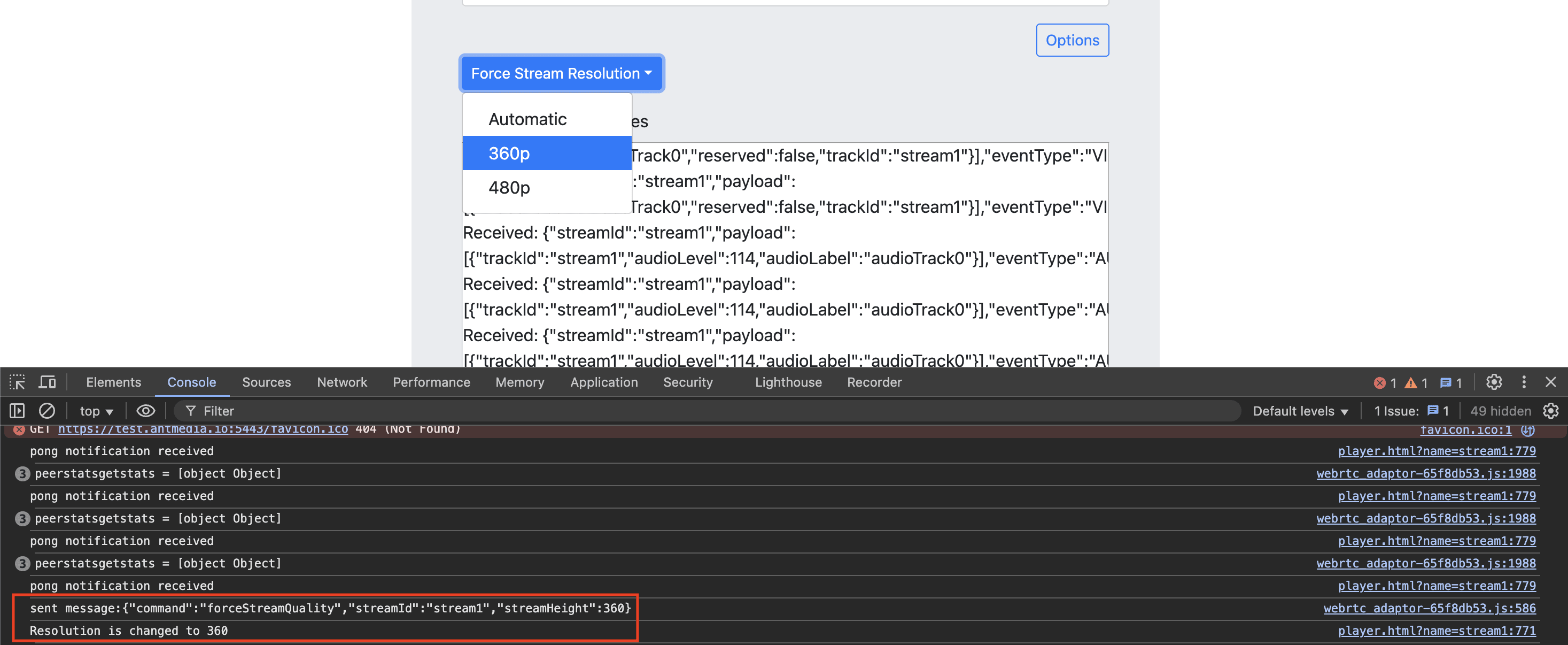
In the example above, 360p resolution is selected.
Enforce Stream Quality in AMS Web player (play.html)
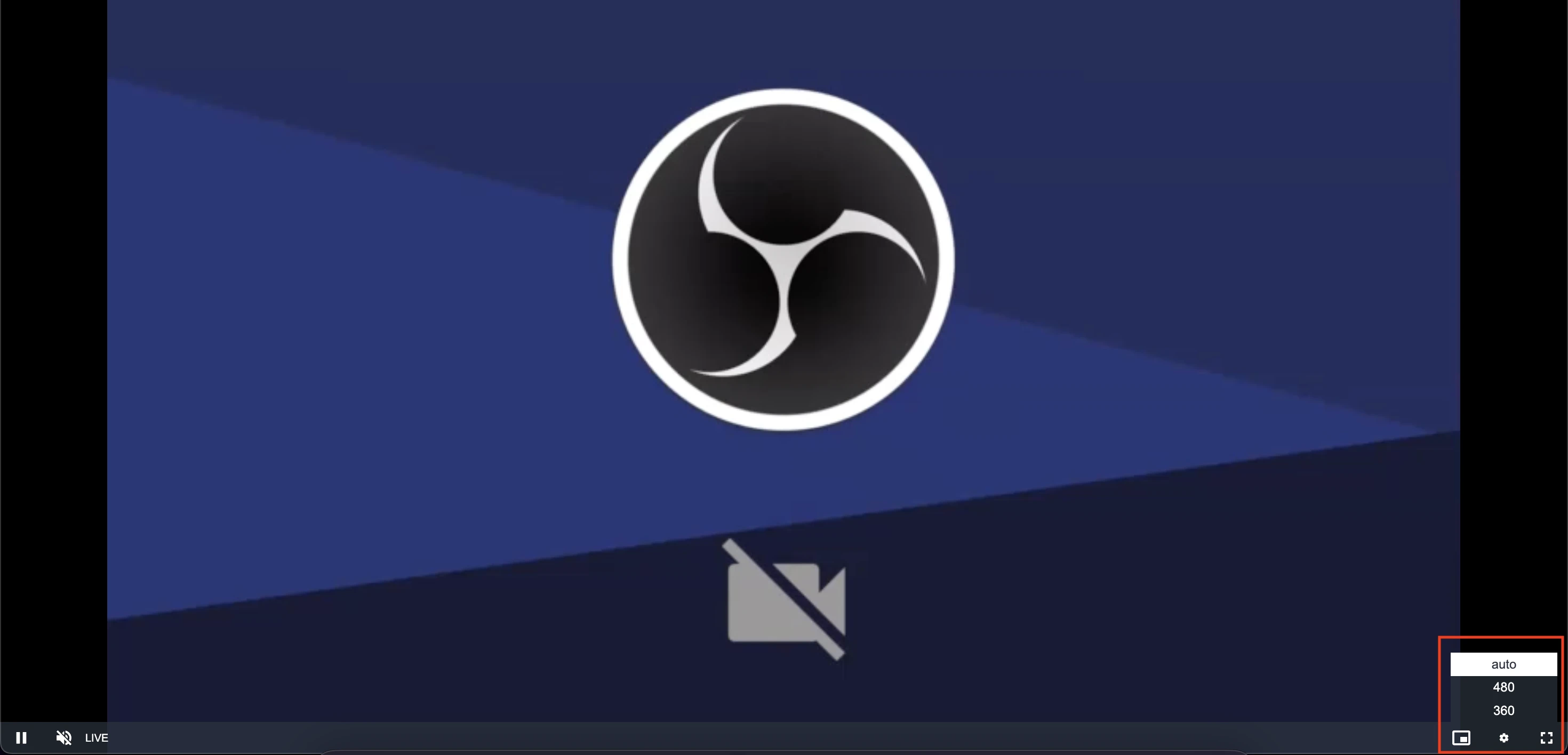
AMS also allows enforcing quality in the Web Player (play.html), similar to player.html. Users can select a resolution, and the stream will be forced to that quality.
To learn more about AMS Web Player, check here.
Adjust the playOrder setting to choose among WebRTC, HLS, DASH, or LL-HLS. Users can then select quality similarly via the Web Player.
Enforcing Quality for M3U8 HLS URL
Since some users access HLS by specifying a particular .m3u8 URL, you can enforce stream quality by selecting the variant corresponding to that quality.”
For example, if your HLS playlist has multiple bitrates:
- adaptive.m3u8
- 240p
- 360p
- 480p
- 720p
Here is the HLS URL format for specific bitrate and resolution:
https://domain:5443/AppName/streams/[streamid]_[quality].m3u8
For example:
https://domain:5443/live/streams/stream1_480p1000kbps.m3u8
This ensures the player loads only specified quality instead of relying on adaptive selection.
To learn more about HLS playback, check out here.
Enforcing Quality for M3U8 Low Latency HLS URL
Check out here to learn more about the low-latency HLS.
Here is the LL-HLS URL format for specific bitrate and resolution:
https://domain:port/AppName/streams/ll-hls/streamId/resolution/streamId__lowlatency.m3u8
For example:
https://domain:5443/live/streams/ll-hls/stream1/480/stream1__lowlatency.m3u8
🎯 Your Stream, Your Quality, Your Way! 📺
You’ve enabled Enforced Stream Quality, meaning viewers can pick (or you can push) exact resolutions via WebRTC, HLS, DASH, or LL-HLS. No guesswork: what’s requested is what’s played.
Now your streams aren’t just adaptive — they follow the quality rules you set. ✅