Webinar in Action
Before proceeding, let's first learn about the basic roles of the Circle Webinar solution:
Webinar Roles
A webinar typically involves three main roles:
1. Host (or Moderator)
- Responsible for managing the webinar session.
- Make the participants visible by the listeners
- Controls muting/unmuting participants and turning off camera
- Can accept listeners' requests to become a publisher
- Can make the listener (temp speaker) listener again
2. Speaker (or Panelist / Presenter)
- Delivers the main content of the webinar (video, audio, or shared screen).
- Can present slides, share the screen, and interact with the host and attendees in real time.
- Typically limited to a few selected participants chosen by the host.
3. Listener (or Attendee / Participant)
- Joins the webinar mainly to watch and listen.
- Usually receives the stream with WebRTC (for interactivity) or HLS/DASH (for scalability).
- Can interact through chat, Q&A, polls, or other audience engagement tools, depending on permissions given by the host.
- Cannot directly broadcast audio/video unless promoted by the host.
Usage
-
Visit
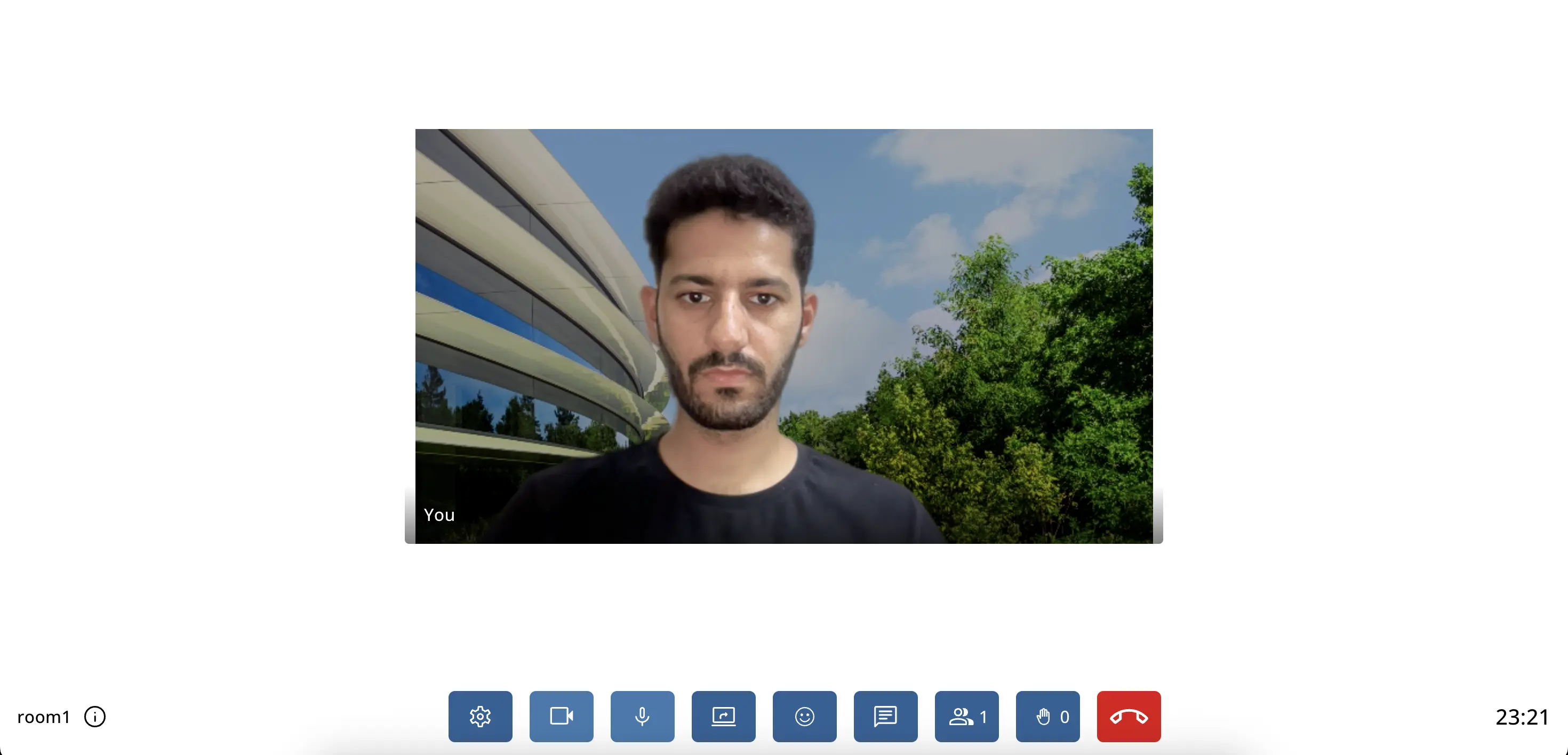
https://domain:5443/webinar/room1?role=host&streamName=host&skipSpeedTest=trueto join as a host.The host can see every speaker in the room.
-
Visit
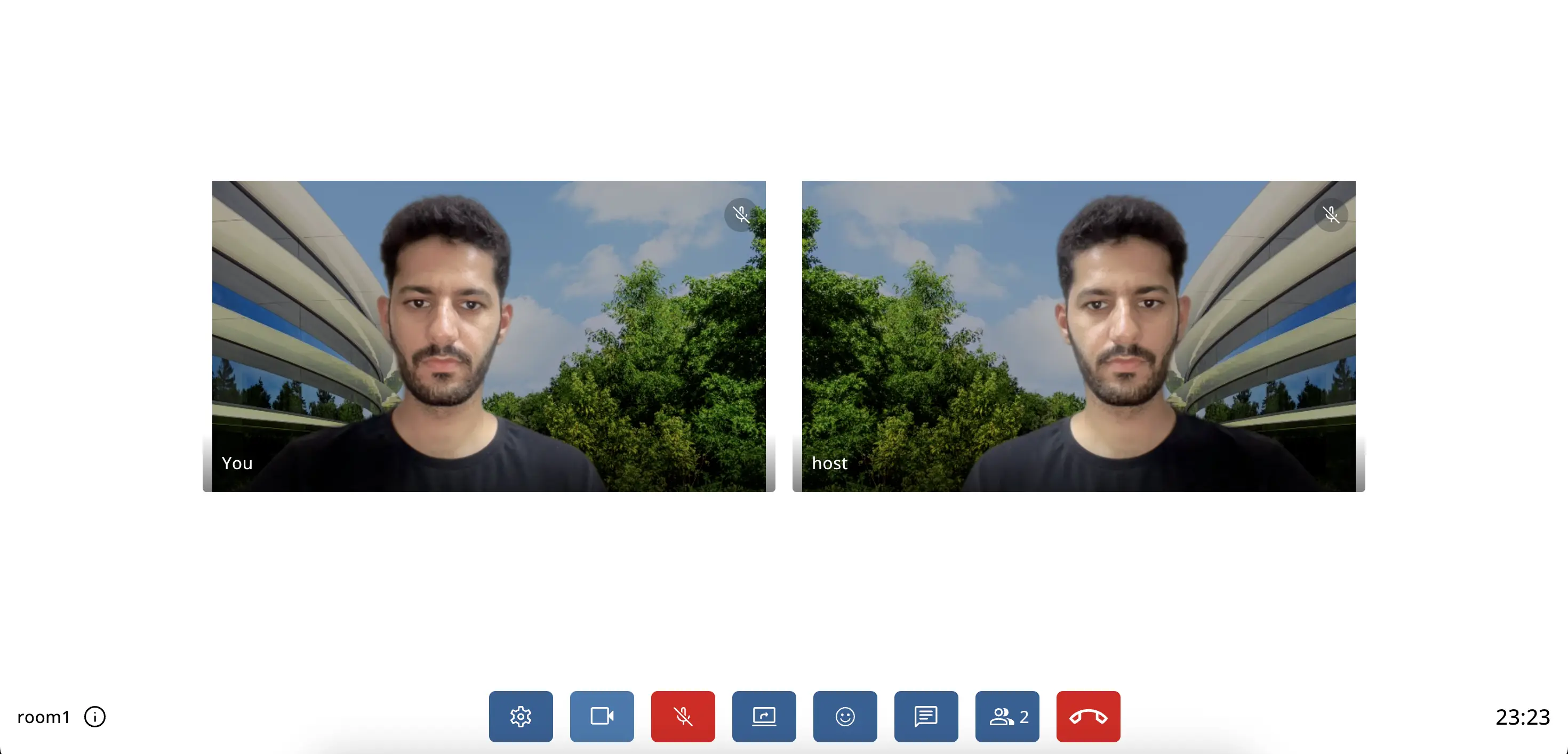
https://domain:5443/webinar/room1?role=speaker&streamName=speaker&skipSpeedTest=trueThe speaker can also see the host but by changing the scope, it can be changed. We will discuss it further.
-
Visit
https://ovh36.antmedia.io:5443/webinar/room1?role=listener&streamName=listener&skipSpeedTest=true&playOnly=trueto join as a listener inplayOnlymode.It means the listener cannot see anyone when joining by default but he/she can still ask the questions via the chat box.

-
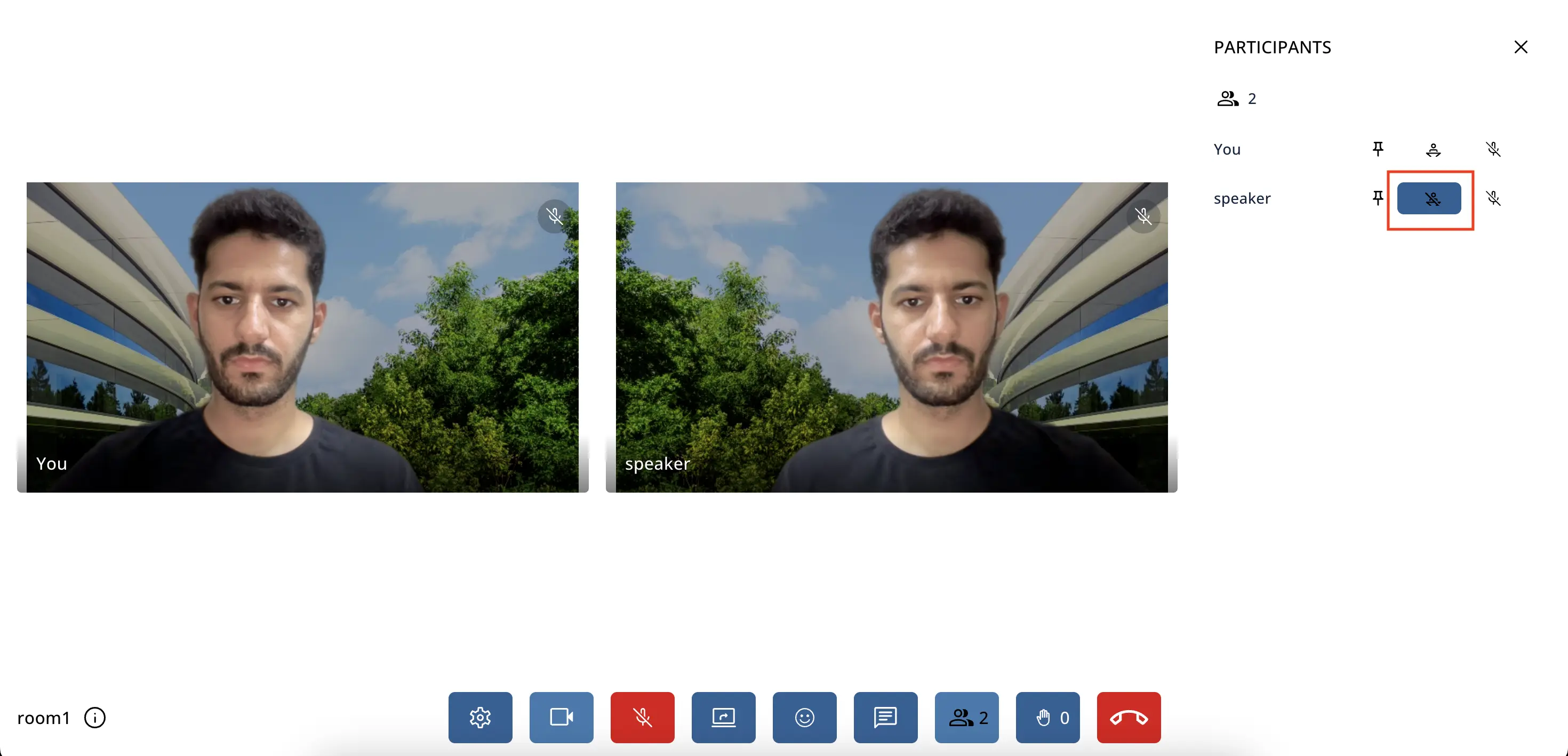
Now, the host has a control to allow the speaker to be visible to the listeners.
Check out the highlighted item in the below image to allow the speaker to be watched by every listener.
-
Now, you will see that the listener is able to see the speaker in a room.
-
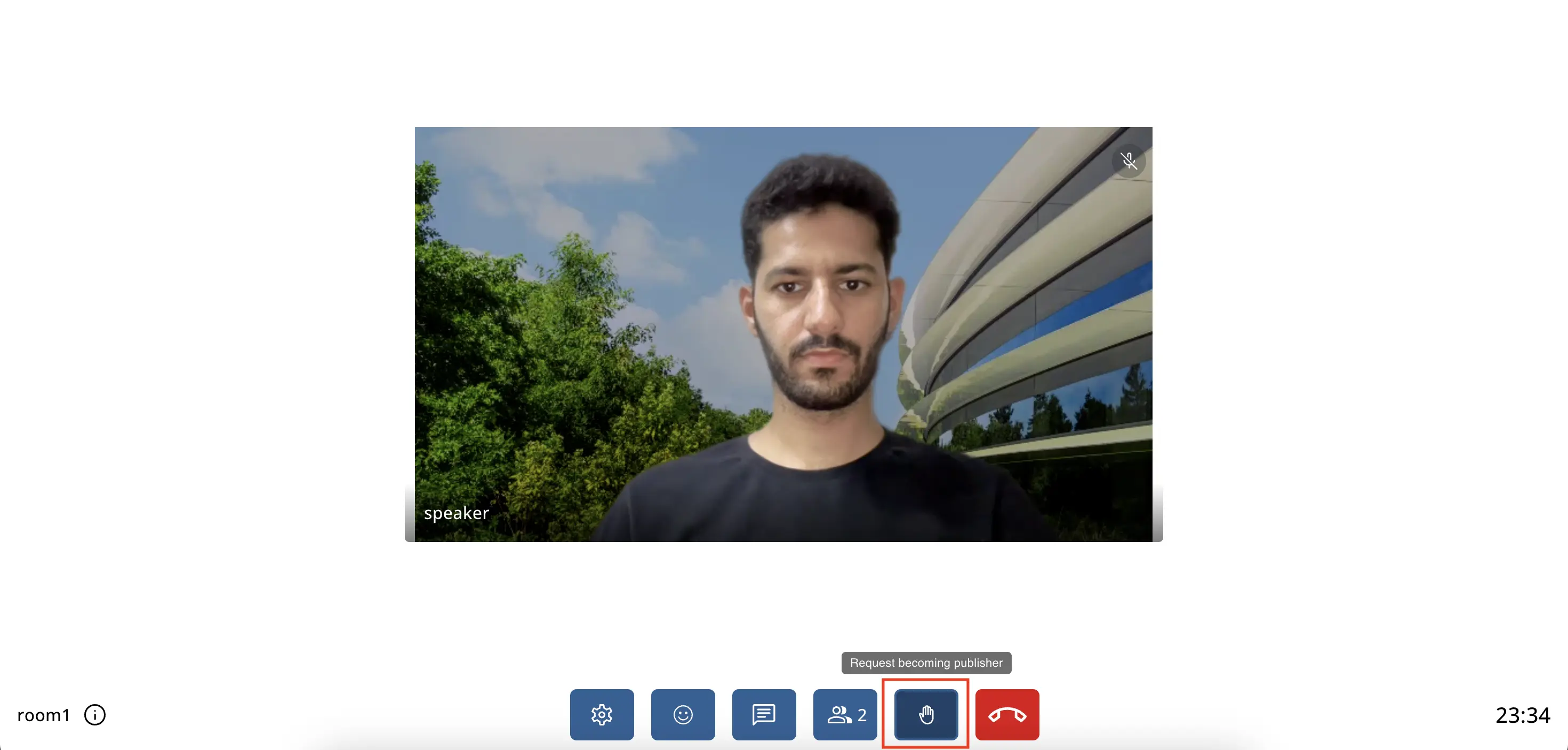
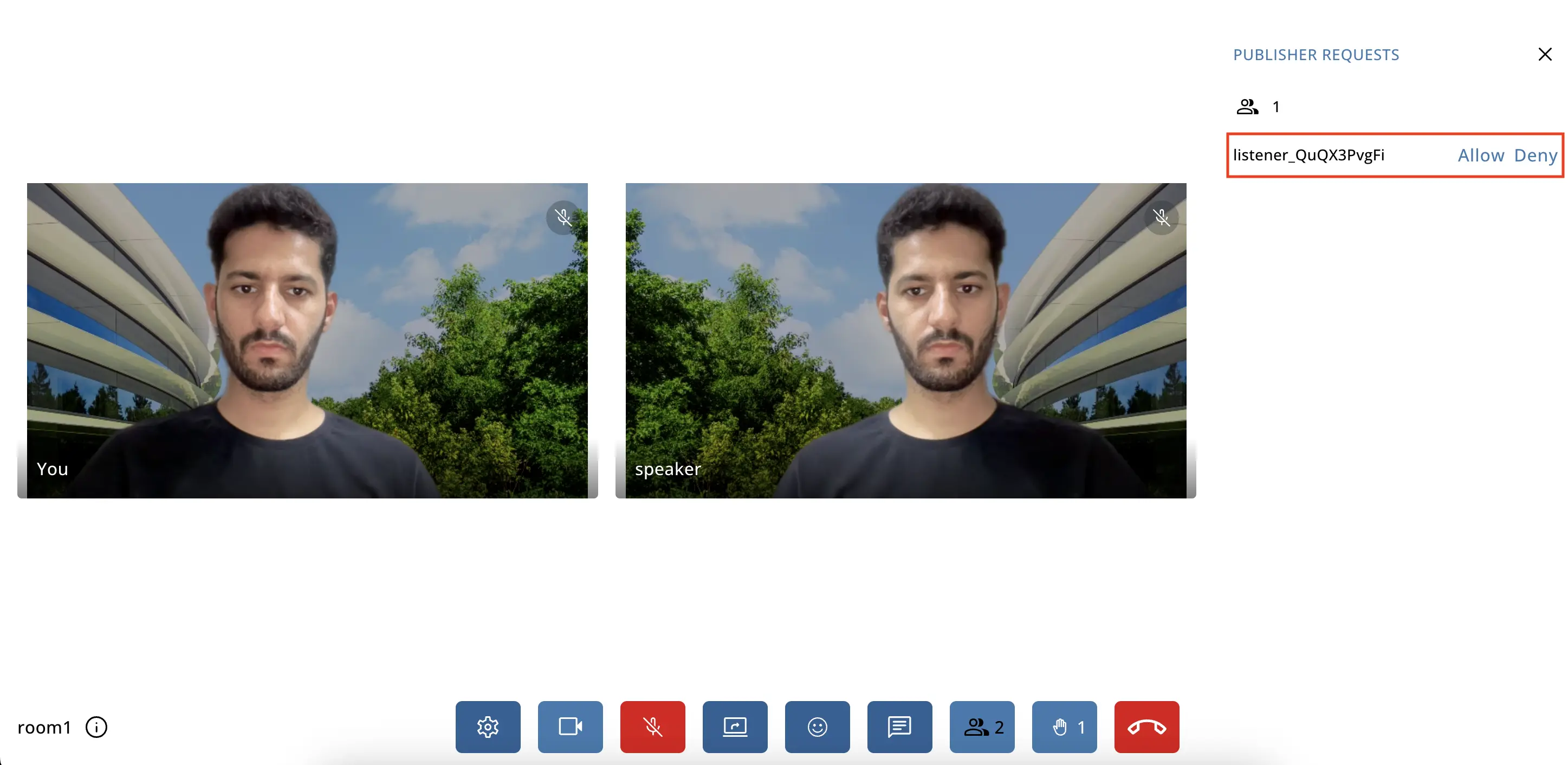
Now if the listener wants to become a speaker, the listener needs to raise their hand.
-
After that, the request goes to the host and now the host can allow/deny the listener's request. Check out the below image for reference:
In this way, the basic webinar usage is done using AMS and the Circle Webinar Solution.
Scope of Roles
The scope of roles can be changed via application advanced settings under the below property
"participantVisibilityMatrix":
-
The main roles are
host,speaker,listenerandactive speaker (the one when host allow speaker to be visible by listener) -
The other roles are not important in the basic webinar case, but can be used for advanced purposes.
-
The host can see everyone:
"host": ["host","active_host","speaker","active_speaker","listener","temp_listener","active_temp_listener"], -
The speaker can also see everyone but you can change the scope as per the requirements:
"speaker": ["host","active_host","speaker","active_speaker","temp_listener","active_temp_listener"], -
The listener can only see limited users:
"listener": ["active_host","active_speaker","active_temp_listener"]
Visit here to test the Circle Webinar Solution using the URL format described above.
Stay tuned with Ant Media Server for upcoming features! :)