Configuring RTMP LB in Azure
Follow the instructions below to configure RTMP Load Balancer in Ant Media Server Auto Scaling structure.
1. Click Create Load Balancer to create a new Load Balancer (Search >` Load Balancing)
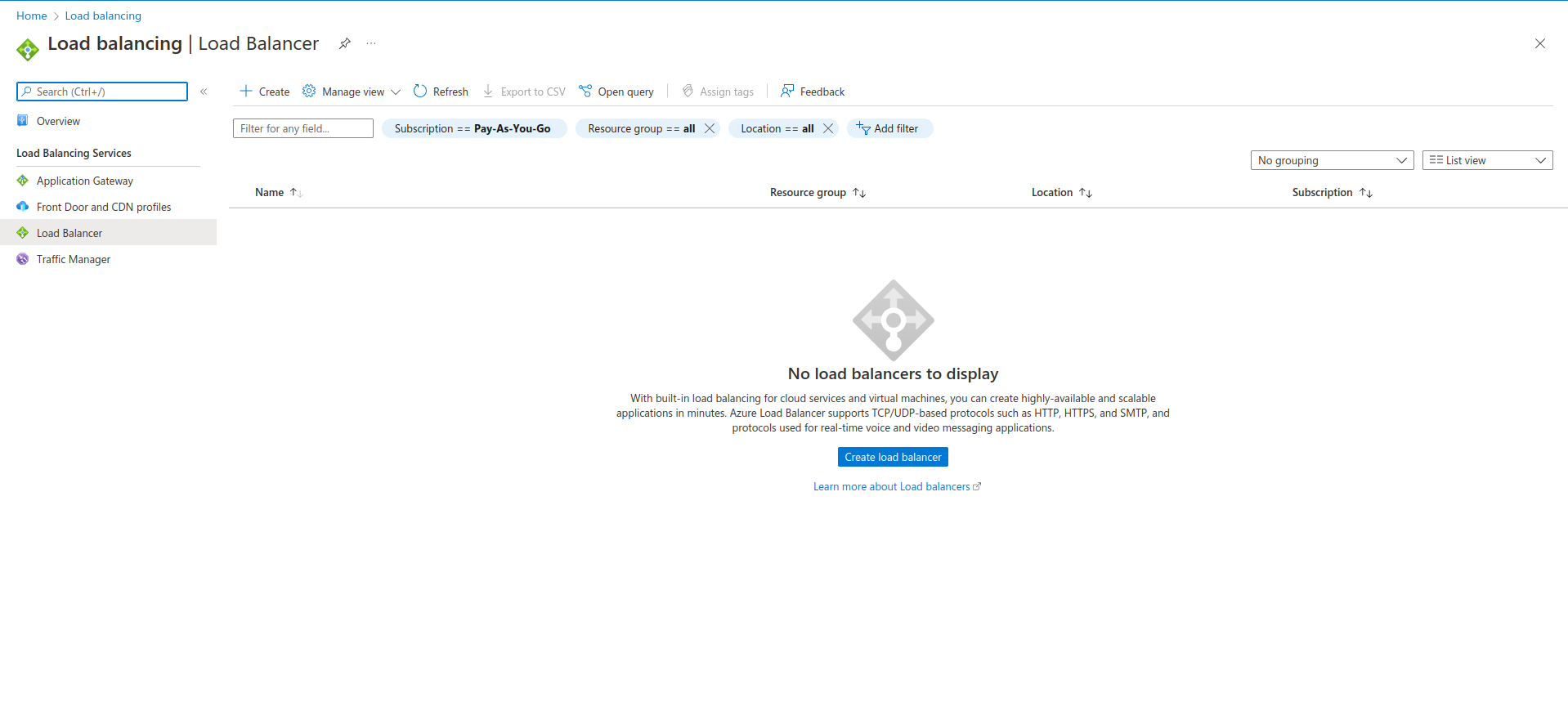
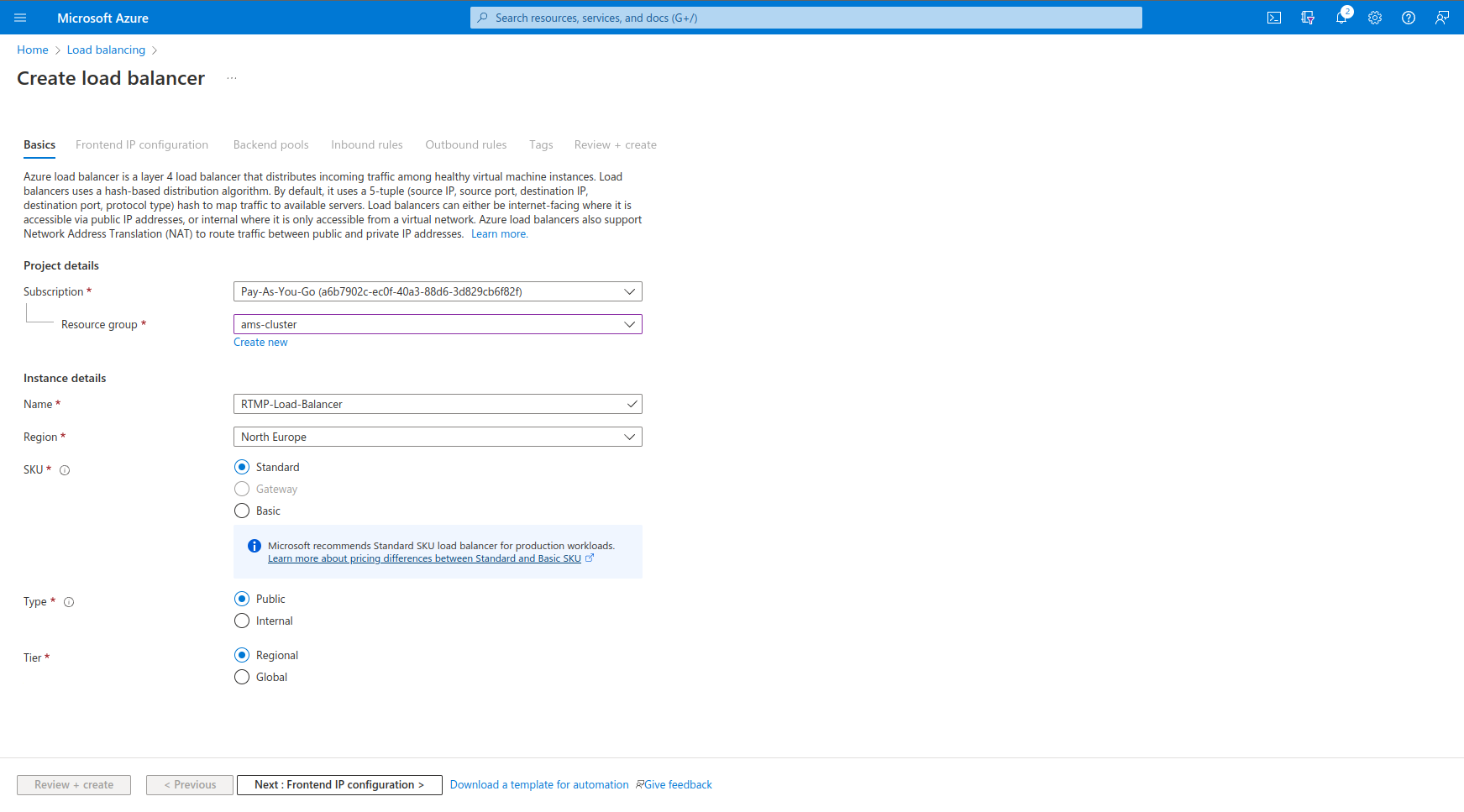
2. In this section, select Resource Group and click Next: Frontend IP configuration.
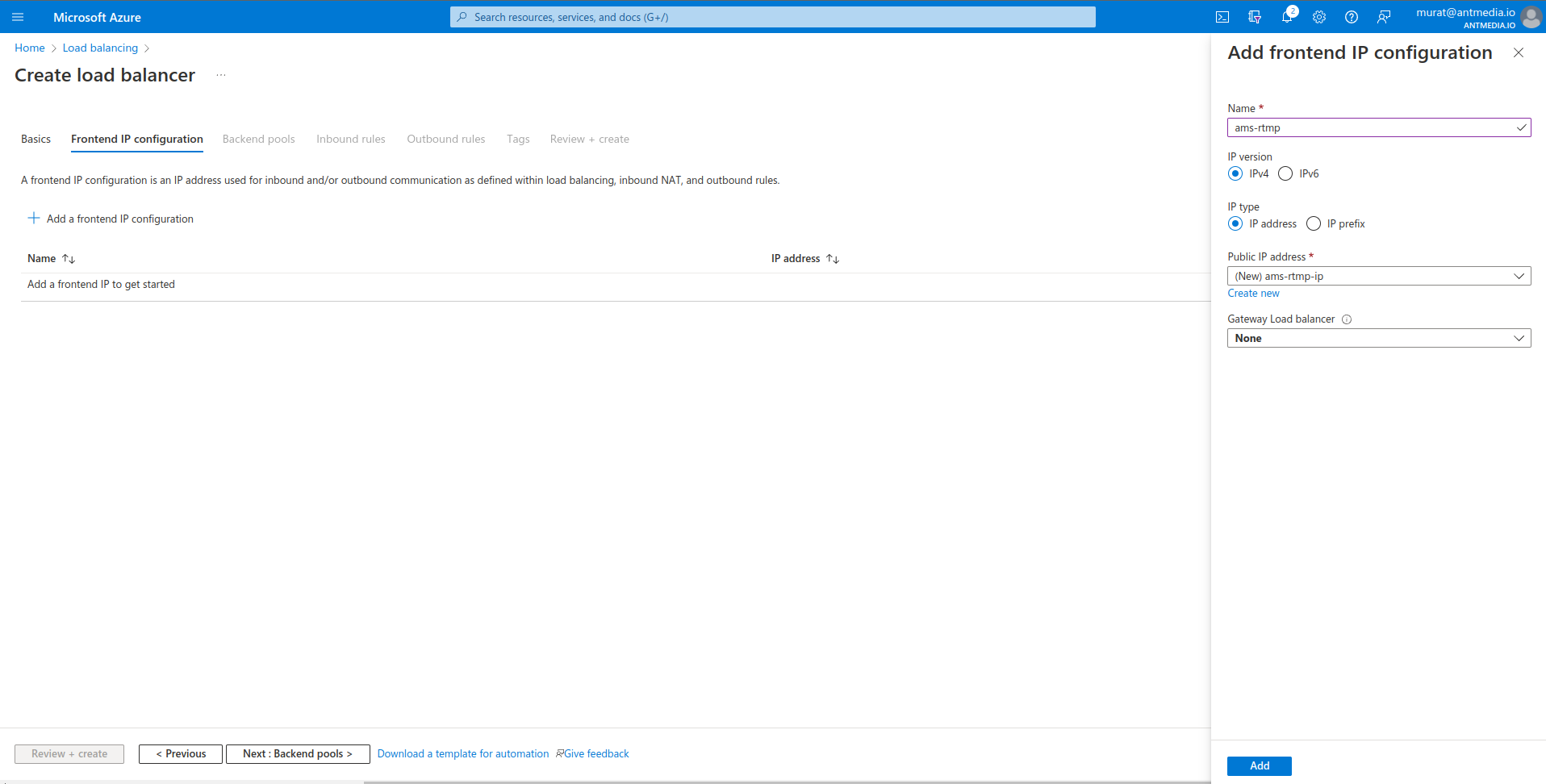
3. Click Add a frontend IP configuration in this section and edit as in the screenshot.
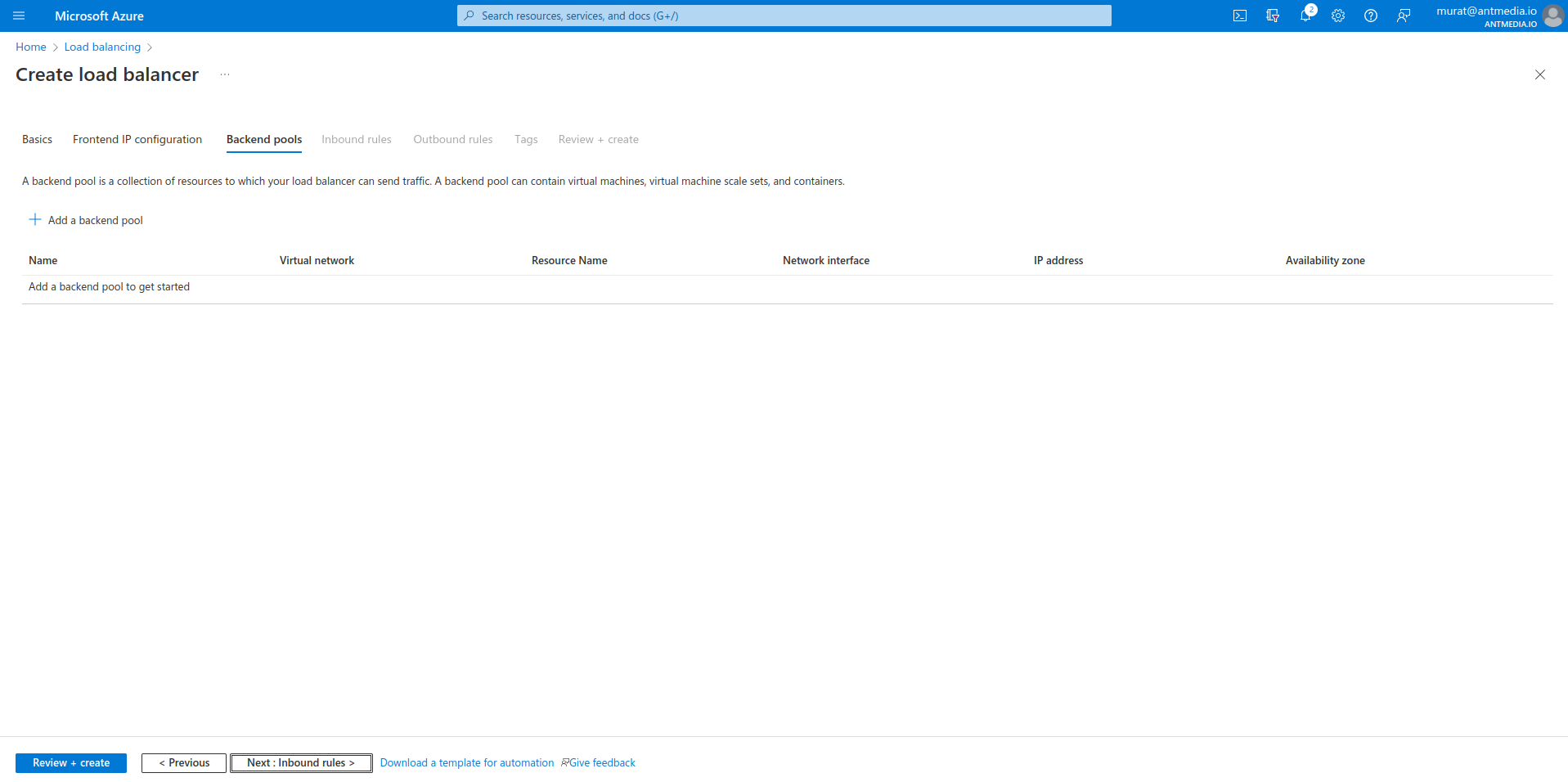
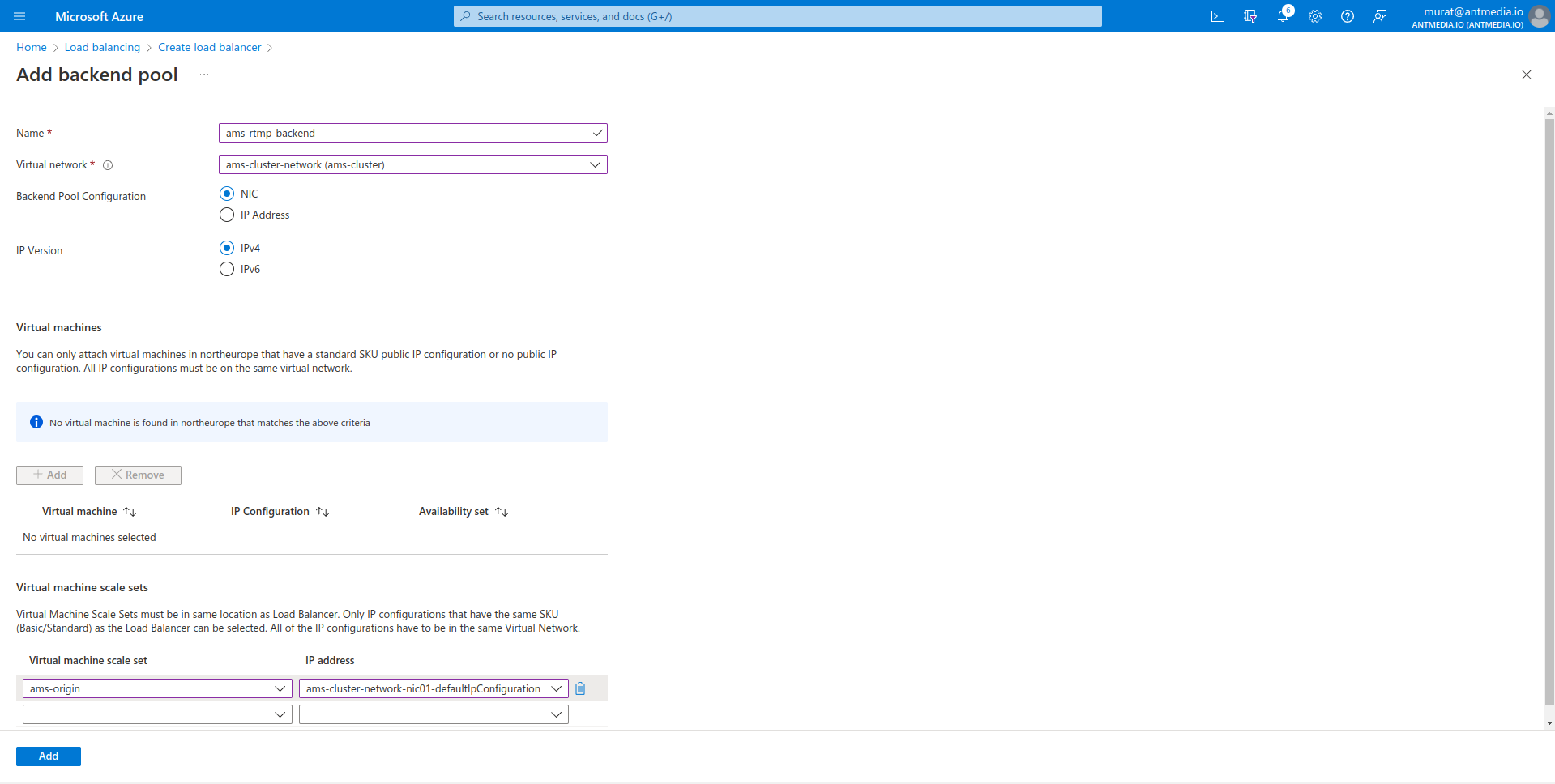
4. Now it's time to add the backend pool. Select your Virtual Network and set your Origin scale set.
5. Click Add a load balancing rule and make your settings as in the screenshot.

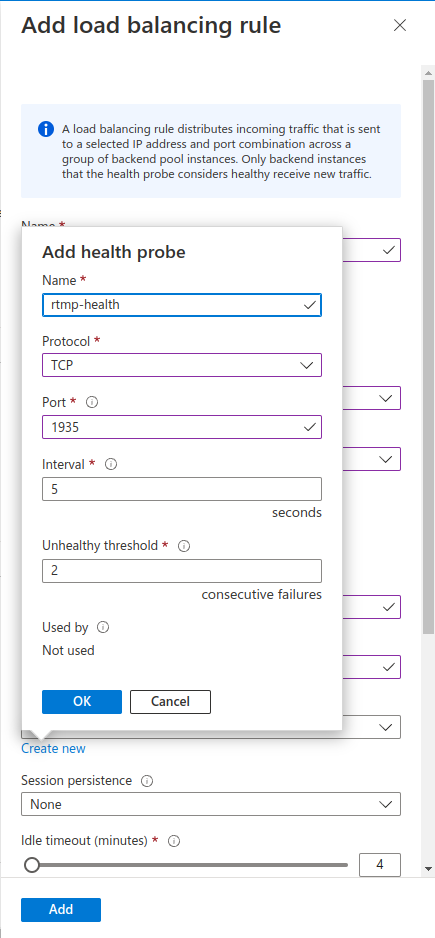
Now we need to create a Health Probe. Create the health probe as follows.
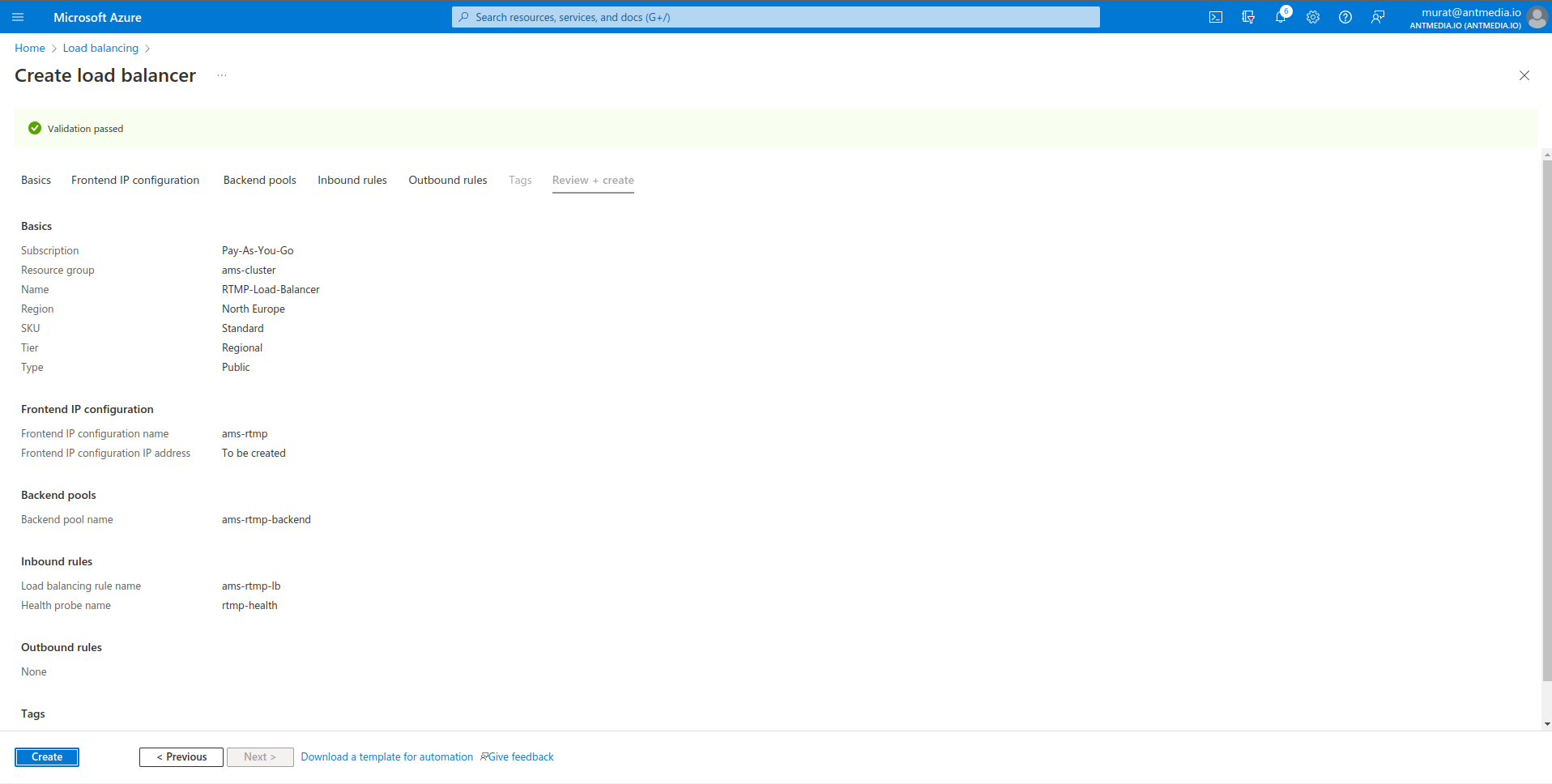
6. Finally, let's click on Review and create and create our Load Balancer.
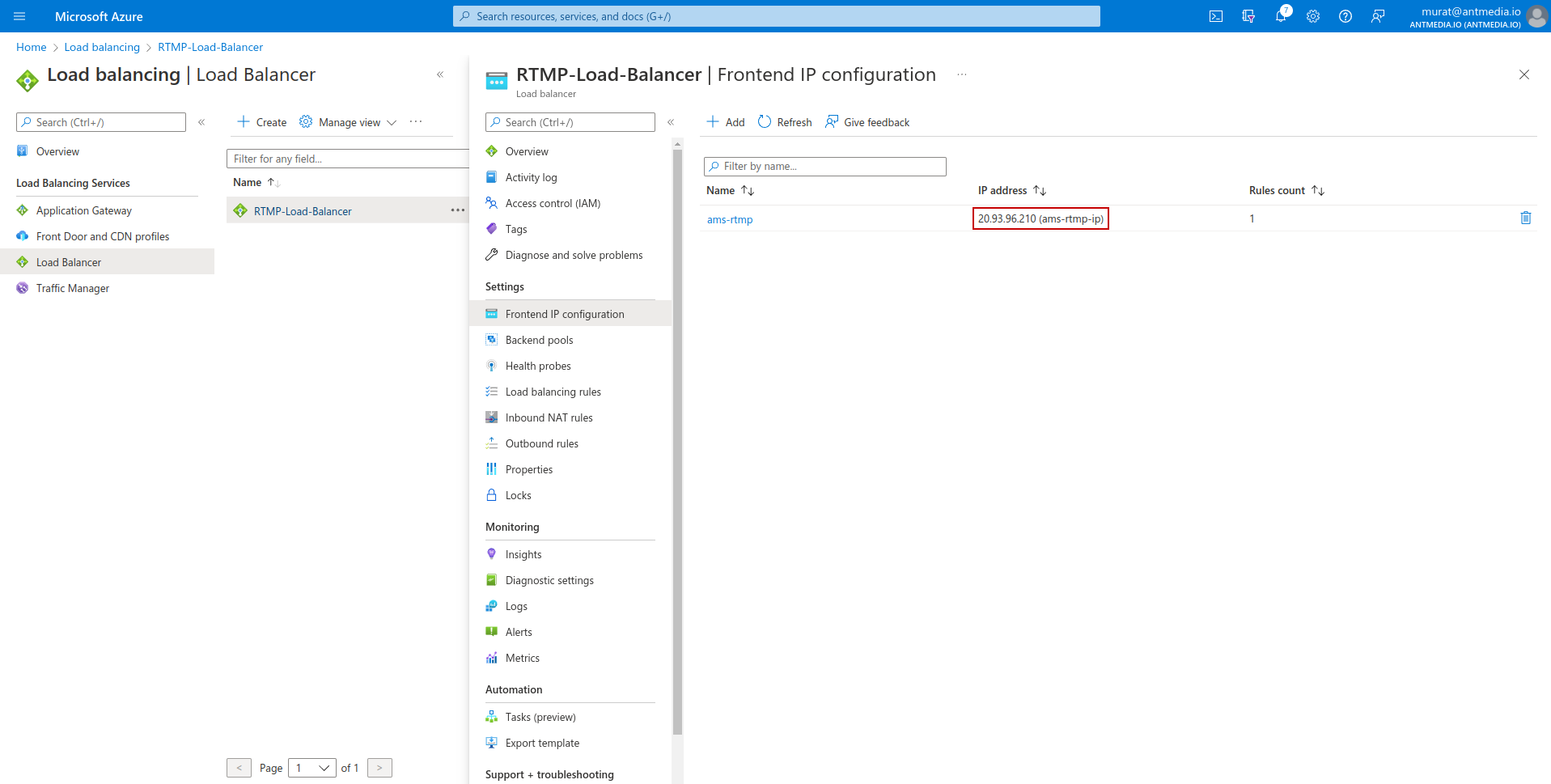
7. You can find out the IP address you will use for broadcasting by clicking Load Balancing >` Your Load Balancing >` Frontend IP configuration.
⚖️ RTMP LB — Balanced Broadcasting! 🎉
Your RTMP Load Balancer is now configured inside the Azure Auto Scaling framework. With the load balancer and health probe in place, your Ant Media Server deployment is prepared for resilient, high-availability streaming at scale.
You're ready to broadcast reliably — go light those streams and let the audience roll in. Happy streaming! 🎬